Text to Video AI Generator
Turn a written scene into a short AI video for TikTok, Reels, Shorts, and ads. Pick format and model, see credits first, keep outputs private.
- Seedance · Kling · Veo
- Social · Product · Storyboard · Ads
- 9:16 · 16:9 · 1:1
- From 66 credits
Route reference: Default route documentation ↗
Use Text to Video
Text to Video examples
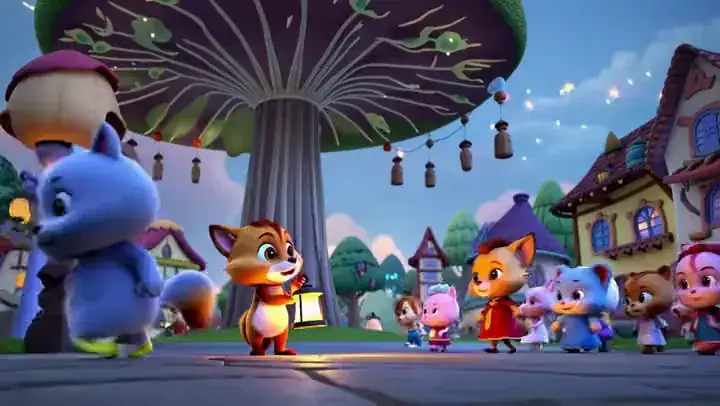
Task-ready demos with matching prompts for social, product, fantasy, and cinematic clips.
Prompt
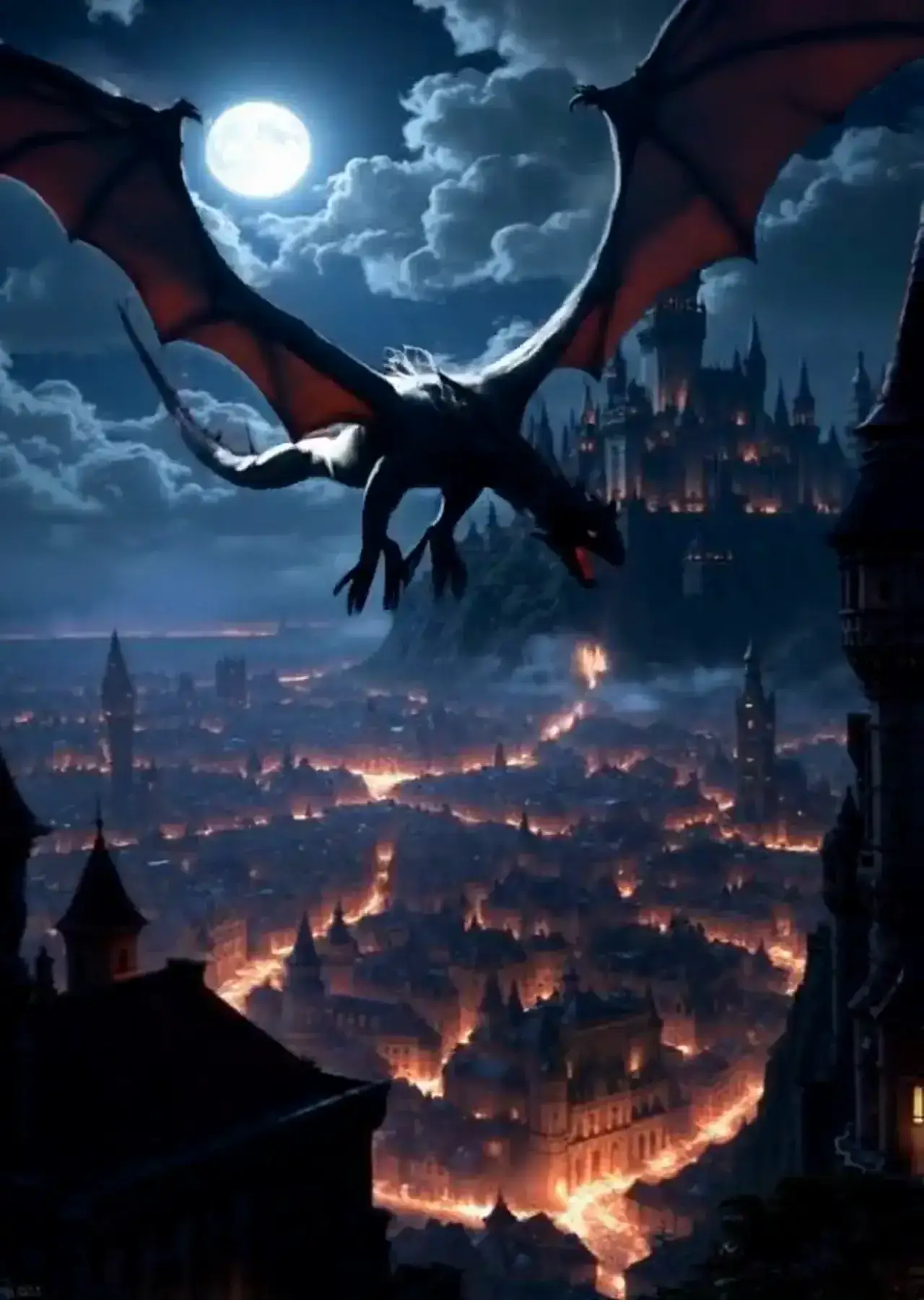
An evil dragon flies in the sky with a moon hanging above, dark wings spread over a burning medieval city, molten streets below, gothic castle on a distant cliff, cinematic vertical framing.
Text to Video AI use cases
Match a written scene to the job you need to ship—social hooks, product teasers, storyboard shots, ads, dialogue, or kinetic type.
Social
Social hooks and Reels
Short vertical clips for TikTok, Reels, and Shorts before a full shoot.

Product
Product teaser clips
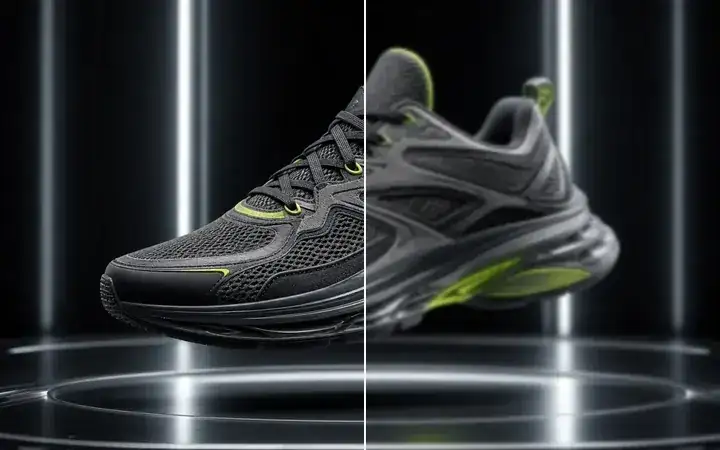
Controlled product motion for ads, launches, and listing teasers.

Storyboard
Campaign storyboard shots
Cinematic looks and camera language before a longer edit or shoot.

Ads
Action-led ad variants
High-energy motion for paid social and campaign cutdowns from one brief.

Dialogue
Dialogue and narration scenes
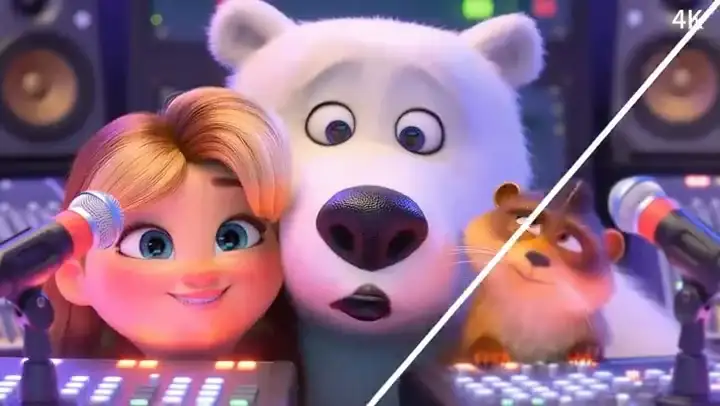
Scene-led clips with speech and ambience when the story needs a spoken beat.

Kinetic
Fashion and kinetic motion
Bold body and camera motion for fashion, performance, and stylized opens.

Why creators use MixVio Text to Video
Write the scene, direct the camera, compare models, and review credits before you generate a private MP4.
Camera and scene language
Describe tracking shots, push-ins, light, and sound in one generator—then refine until the beat lands.
Same prompt, switch models
Keep one written scene and compare Seedance, Kling, Veo, or Gemini Omni Flash without rebuilding the brief.
Formats ready to post
Set 9:16, 16:9, or 1:1 before you generate so the private clip is ready for TikTok, Reels, Shorts, YouTube, or ads.
Text to Video AI models
Same prompt, different motion styles. Pick the route that fits the job—then open the model page for details.
Cinematic + audio
Seedance 2.0
Cinematic motion with native synchronized audio for polished scene work.
Text-led staging
Kling 3.0
Bold camera moves and text-led cinematic staging with flexible duration.
Polished short-form
Veo 3.1 Fast
Cleaner polished short clips ready for social and ads.
Fast drafts
Gemini Omni Flash
Lower-credit drafts when you want to test scene direction quickly.
How to generate AI video from text
Three steps from a written scene to a private MP4—no timeline editing required.
- 1
Write the scene
Describe subject, motion, camera, light, and sound—or try a demo prompt above.
- 2
Set format and model
Choose aspect ratio, duration, and route in the generator.
- 3
Generate and download
Confirm the credit quote, generate, then download the private MP4—or reopen it in Studio.
Text to Video Pricing
260 credits per clip on the published route. Free is a watermarked preview; paid plans add monthly credits, with the exact quote shown before every run.
Explore more AI tools
Start from a still, enhance a finished clip, or add captions for social.
Text to Video AI FAQs
What is an AI text to video generator?
An AI text to video generator turns a written scene into a short video clip. On MixVio you describe subject, motion, camera, and sound, then generate a private MP4 for social, ads, or edits—no timeline editing required.
How do I generate AI video from text?
Three steps in the generator on this page. 1) Write the scene: describe subject, motion, camera, light, and sound—or try a demo prompt above. 2) Set format and model: choose aspect ratio, duration, and route. 3) Generate and download: confirm the credit quote, generate, and download the private MP4—or reopen it in Studio.
Is MixVio Text to Video free?
No. Generations use credits quoted from the selected model, duration, and resolution before you submit. Current public routes start around 66 credits for shorter Gemini Omni Flash clips and rise with longer or higher-resolution Seedance outputs. Failed or cancelled jobs do not keep the reserved credit.
What formats and output specs are supported?
Public routes commonly support 9:16, 16:9, and 1:1. Output resolution depends on the model—many routes offer 720p, with 1080p or 4K on selected Seedance and Veo paths. Exact controls appear in the generator for the model you pick.
How long can my generated video be?
Public text-to-video routes generate short clips. Supported durations are typically in the 3–15 second range and vary by model—for example some Seedance routes use 5s or 10s options, while Veo 3.1 Fast uses its own short duration set. Choose the length in the generator before you confirm credits.
What kinds of text prompts work best?
Short scene briefs: subject, action, camera move, lighting, sound cues, and a final hold. Exact logos, fine typography, and brand-critical wording still need human review.
What are the limitations of AI text to video?
Dialogue accuracy, logos, fine on-screen text, packaging detail, and exact brand fidelity can drift or distort. Treat demos as creative direction, review every clip before publishing, and use Image to Video when the subject must stay locked to a reference frame.
What if I am not satisfied with the result?
Adjust the scene prompt, switch model, or change format and duration, then generate again. Each new run shows its credit quote before submit. Failed or cancelled jobs do not keep the reserved credit.
How long does generation usually take?
It depends on model, duration, resolution, and queue load. Stay on the page or check Studio history—exports are not always instant.
Can I use the videos for commercial projects?
Yes for outputs you generate in your MixVio workspace, subject to MixVio terms and each model provider’s usage rules. Review trademarks, likeness, music claims, and platform ad policies before publishing.
Are prompts and outputs private?
Yes. Prompts and finished clips stay as private workspace assets. Signed URLs, asset IDs, and private prompts are not added to public page URLs or analytics. Keep reviewing exports before you share them outside your workspace.
Which models should I use for Text to Video?
Reviewed public routes include Seedance, Kling, Veo, and Gemini Omni Flash. Start with Gemini Omni Flash for lower-credit drafts, Seedance when cinematic motion and native audio matter, Kling for bold text-led staging, and Veo for cleaner short-form polish. Some routes return synchronized native audio with the clip—availability depends on the model. Compare options in the Models section above.
How is this different from Image to Video?
Text to Video starts from a written scene when you are idea-first. Image to Video starts from an owned reference frame when the subject is already locked. Switch modes in the shared generator, or open Image to Video.
Open Image to VideoWrite the scene.
Generate the motion.
Write the scene, pick format and model, confirm credits, and download a private MP4.
Start generating videos