Image to Image AI
Turn an owned photo into a restyle, product image, or precise edit. Describe the change, pick format and model, see credits first, keep results private.
- Switch edit models
- Portrait · Product · Interior · Sketch
- 1:1 · 16:9 · 9:16
- PNG · From 1 credit
Use Image to Image
Image to Image examples
Edit demos for lighting, interiors, wardrobe, product details, and campaign layouts. Each example pairs an original image with its result.
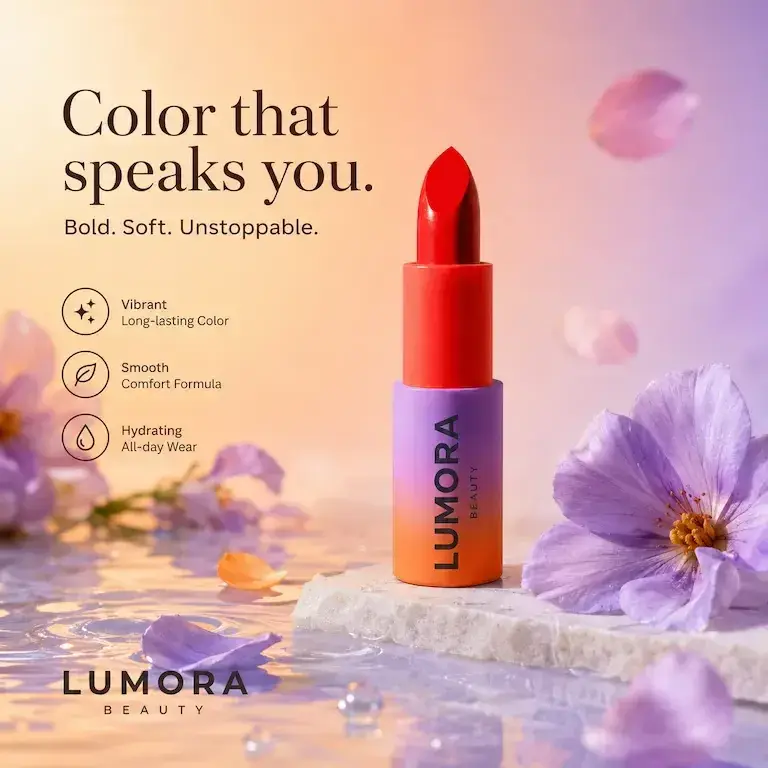
Lipstick pack shot to campaign ad
Prompt
Keep the same LUMORA BEAUTY lipstick, red bullet, and purple-to-orange gradient tube. Restage the pack shot into a campaign image with purple flowers, water, falling petals, and the headline Color that speaks you. Do not redesign the product.
Image to Image AI use cases
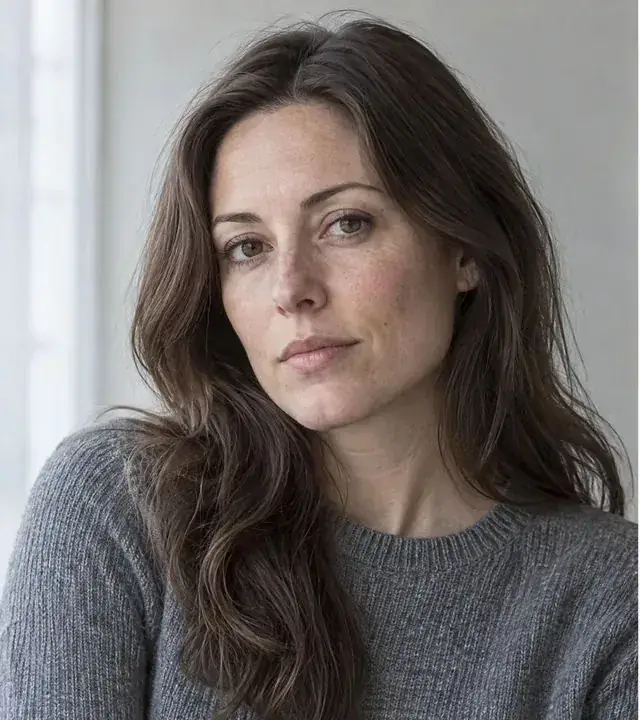
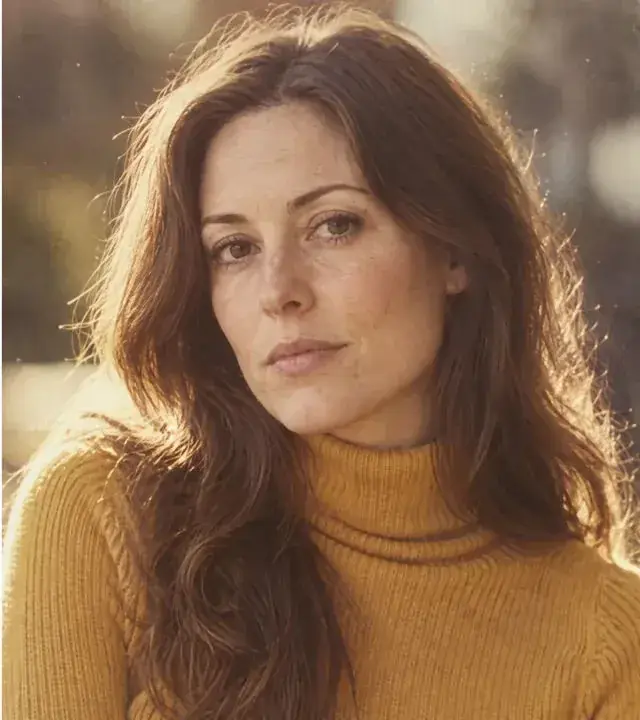
Restyle portraits, keep the face
Change clothes, color, and light while the same person stays recognizable.
Turn pack shots into campaign ads
Keep the product recognizable while the scene becomes a finished ad layout.
Redesign a room from one photo
Refresh art, seating, and lighting while the layout and camera angle stay put.
Keep the photo. Change only what you ask.
Keep the subject locked
Faces, products, and room layout stay recognizable. Name the change—wardrobe, lighting, scene, or style—without regenerating the whole photo.
Same image, switch models
Run one owned photo across GPT Image 2.5, GPT Image 2, Seedream 5.0 Pro, and Nano Banana 2. Compare the edit on the same image, then keep the take that matches the brief.
Quote first. Private PNG.
See the exact credit cost before you generate. Uploads and outputs stay as workspace assets, and a failed run does not keep the reservation.
Image to Image AI models


How to generate AI images from a photo
1. Upload the photo
Start with a portrait, product image, room, or sketch you own or are authorized to edit. Generate stays disabled until an image is attached.
2. Describe the change
Write what should change and what must stay—face, product, or layout. Example: keep the face, change the grey crewneck to a mustard turtleneck.
3. Generate and download
Confirm the credit quote, generate a private PNG, inspect the result, then download or run another pass on the same image.
Image to Image Pricing

Explore more AI tools
Animate the edited image, cut out the subject, or sharpen the export.
Image to Image FAQs
What is an AI image to image generator?
Image to Image starts from a photo you already own and keeps the subject while you change what you ask—wardrobe, lighting, scene, or style. It is not text-to-image from a blank canvas, and it is not Image to Video. MixVio routes the job through reviewed image-edit models and shows credits before you run.
How do I generate AI images from a photo?
Three steps in the generator on this page. 1) Upload the photo: a portrait, product image, room, or sketch you own or are authorized to edit. Generate stays disabled until an image is attached. 2) Describe the change: write what should change and what must stay—face, product, or layout. Example: keep the face, change the grey crewneck to a mustard turtleneck. 3) Generate and download: confirm the credit quote, generate a private PNG, inspect the result, then download or run another pass on the same image.
Is MixVio Image to Image free?
An account is required. Eligible Google-connected accounts receive 40 welcome credits once, valid for 7 days. Image to Image is available on the Free plan when your balance covers the quote. GPT Image 2.5 starts at 1 credit for Low at 1K. Free image-edit delivery is capped at 1K; paid plans unlock higher quality and resolution. Failed runs cost no credits.
How do credits work?
Credits are quoted from the selected model, quality, and resolution before you generate. GPT Image 2.5 starts at 1 credit for Low at 1K. The default 2K Medium pass is 2 credits; other models on this page quote separately. Failed or cancelled tasks release the reservation.
What kinds of prompts work best?
Name what must stay and what should change in the same instruction. Keep identity, product, or room layout explicit, then request one change—wardrobe, lighting, scene, or style. Example: keep the same woman, face, and hair; change the grey crewneck to a mustard turtleneck. Vague “make it better” prompts leave the model guessing.
Upload the photo.
Change only what you ask.
Upload a photo you own, describe the change, confirm credits, and download a private PNG.
Start generating images