Video to Video AI
Edit an existing video with a prompt. Change the subject, outfit, or setting, add optional references, and choose the output settings your model supports.
- Text prompt on a source video
- Restyle · Replace · Reimagine
- Model-specific output settings
- Optional image, video & audio references
Use Video to Video
Video to Video examples
Compare each source video with its edited result. Select Try to load the example and prompt, then adjust them before generating.

Restyle a rose into crystal
Prompt
Turn the rose into clear crystal. Keep the camera, scale, and timing the same.
Video to Video AI use cases
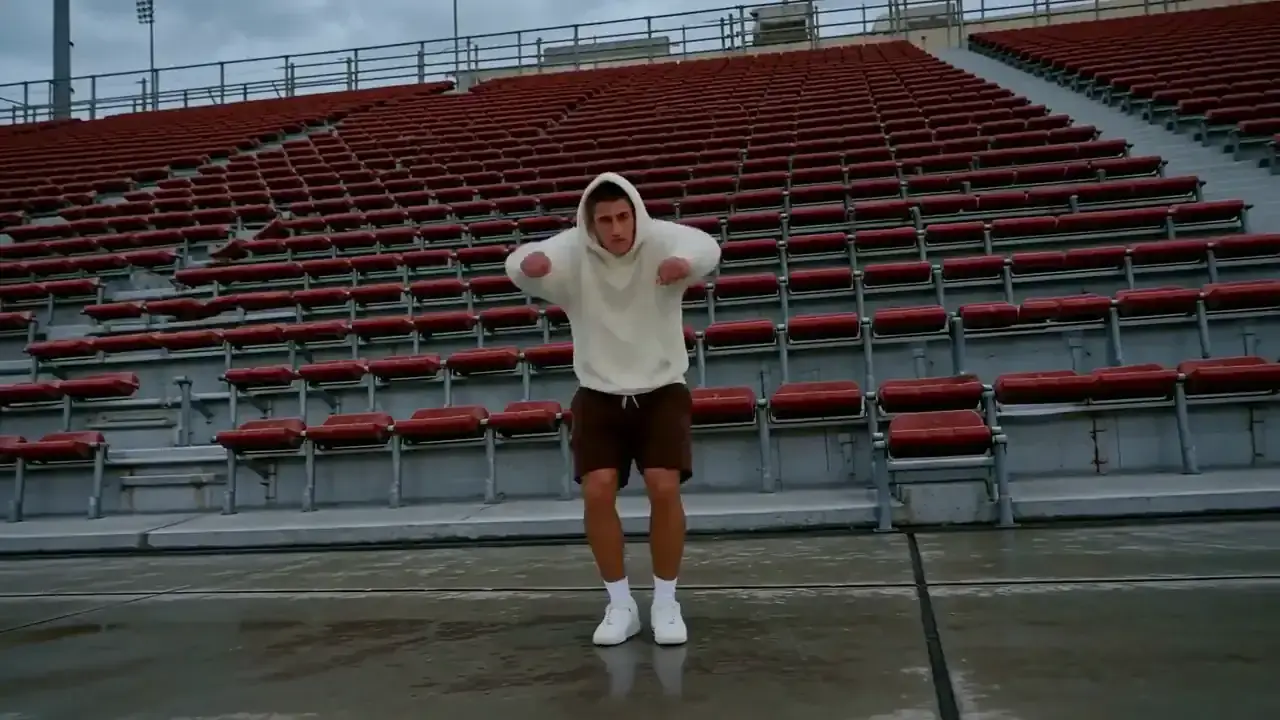
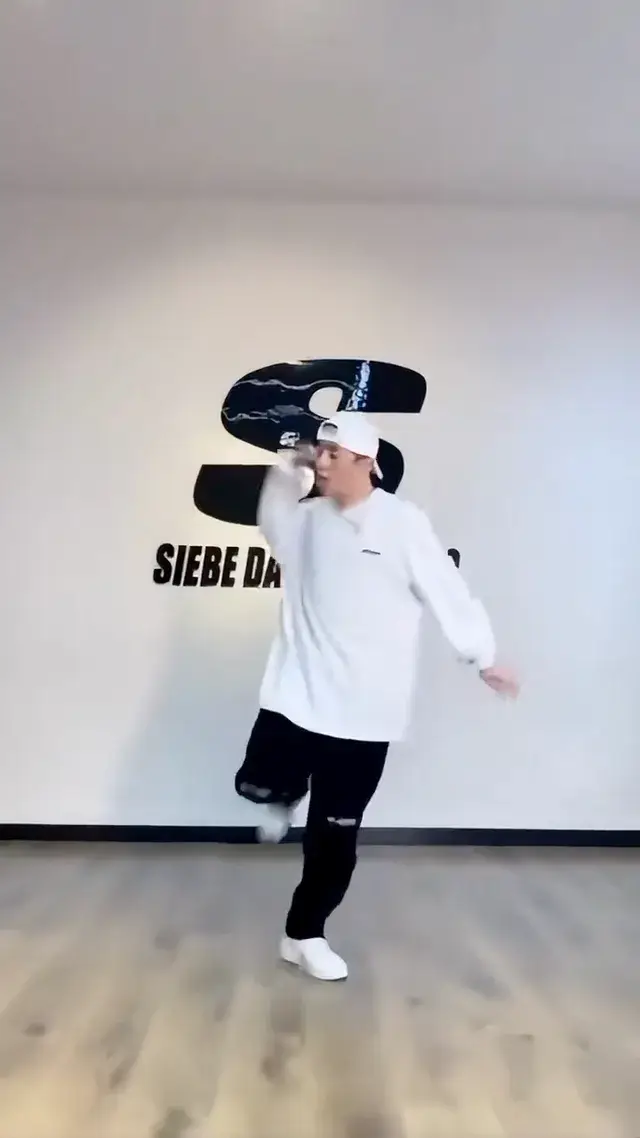
Keep the dance, restage the dancer
Use a dance video to guide a new performer and setting. Describe the choreography and timing to preserve.
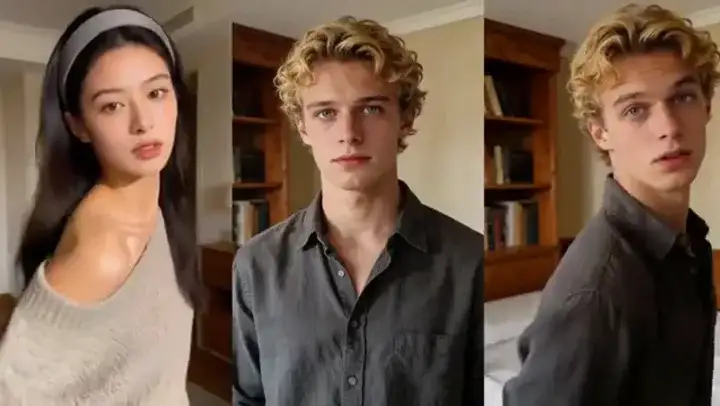
Change the wardrobe, keep the faces
Request a new outfit and specify the people, camera movement, and timing you want to preserve.
Reveal a product in the hands
Use a hand-held reveal to introduce a product or structure, with the source video guiding the action.
What Video to Video can do
Use your video to guide the edit
Start from the action in your source video. Describe the motion, framing, and details you want to preserve.
Change wardrobe or recast the subject
Describe a new outfit or subject. Add supported reference images to guide the appearance you want.
Reimagine the setting
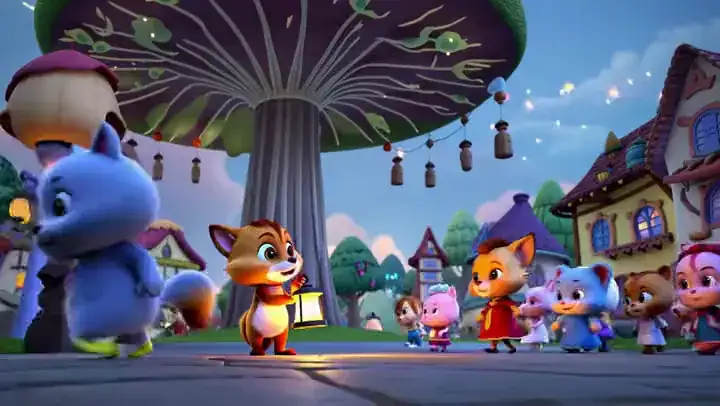
Place the action in a new location, change the atmosphere, or give the video a different visual style.
Video to Video AI models


How to restyle a video with AI
1. Upload the source video
Add a video you own or are authorized to edit. Check the upload limits for your selected model. You can replace or remove the source at any time.
2. Describe the change
Say what to change and what to preserve. Example: replace the cat with a dog; keep the person, background, and camera movement. Add optional references if your model supports them.
3. Generate and download
Review the settings suggested from your source and adjust the available controls. Confirm credits, generate, compare the result with the source, and download.
Video to Video Pricing

Explore more AI tools
Animate an image, transfer a performance to a character image, or upscale your edited video.
Video to Video FAQs
What is Video to Video AI?
Video to Video edits an existing video using a text prompt. Replace a subject, change an outfit, or restyle a setting, with optional references to guide the result. Describe both what to change and what to preserve. Results are generated by AI and may differ from the source beyond the requested edit.
How do I edit a video with AI?
Upload a source video, describe your edit, then review the available settings and credit quote before generating. Add optional image, video, or audio references when supported by the selected model. Compare the result with your source before downloading. You can replace or delete the source at any time; Generate stays disabled until a source video is attached.
What input limits apply?
The source uploader shows the duration, file size, and formats accepted for your selected model. MP4 and MOV are supported; when video conversion is available, you can also upload M4V or WebM files up to 200 MB. The prepared video must still meet the selected model’s limits. Optional references share that model’s file and duration limits, including the source video in its total video count.
Can I change the resolution, length, and aspect ratio?
Yes, where the selected model supports those controls. When you add a new source video, MixVio uses its detected resolution, length, and aspect ratio to suggest the nearest supported settings. You can adjust editable controls. Settings marked Follow source are fixed to the original; Auto lets the model determine the aspect ratio. Source-derived output length may be rounded to a supported whole second.
Which models can I use for Video to Video?
Choose from the editing models available in your generator. Seedance 2.0 is the default; other editing options include Seedance 2.5, Kling 4.0, MiniMax H3, Wan 3.0, and Kling 3.0 Omni. Source lengths range from 2–15 seconds to 4–30 seconds depending on the model. Check its upload limits, supported references, output controls, and credit quote before generating.
Start with your video.
Describe what to change.
Add your source video and optional references, describe the edit, then review settings and credits before generating.
Start Video to Video