AI Image Upscaler
Increase image resolution and sharpen detail. Compare Soft vs Crisp, then download a full-size PNG or JPEG.
- From 6 credits
- Paid plans: no MixVio watermark
- Up to 10 MB
- Works from your browser
Use AI Image Upscaler
AI Image Upscaler workspace
Sneaker · Preview only


AI Image Upscaler use cases
Sharper social posts
The crop is locked, but the file still looks soft on phones. Lift clarity for posts and ads — no reshoot.
Marketplace-ready product photos
Improve listing photos and product images once framing is final and textures still look soft.
Print-ready posters and flyers
Raise posters, flyers, and large-format images to a cleaner print look after creative approval.
Why choose AI Image Upscaler
Reconstruction, not stretch
Cleaner edges and larger exports — not a simple enlarge that leaves soft texture.
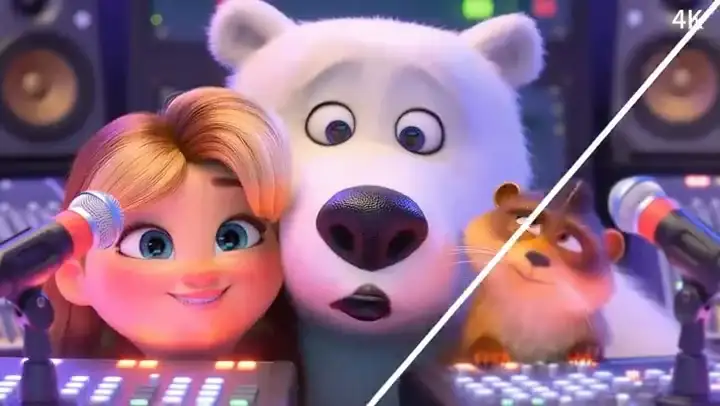
Compare Soft vs Crisp
Preview the soft source against the crisp result before you download.
Private workspace export
Inputs and enhanced files stay as private workspace assets. Signed URLs stay off public page URLs.
How AI Image Upscaler works
1. Upload your image
Upload a JPEG, PNG, or WebP up to 10 MB.
2. Enhance
Submit to sharpen and upscale after confirming the credit quote.
3. Compare and download
Check Soft vs Crisp, then download the enhanced file. Free Plan output is watermarked; paid output is watermark-free.
AI Image Upscaler Pricing
Explore more AI tools
Cut out a subject, edit the image, or continue into video after you enhance.

AI Image Upscaler FAQs
What is MixVio AI Image Upscaler?
It is an online finishing tool that enhances owned artwork for sharper delivery exports. Enhancement can infer detail that differs from the original — use AI Photo Editor for one local fix, or Image to Image for a broader restyle.
How do I upscale an image?
Upload a JPEG, PNG, or WebP up to 10 MB, select Upload to enhance, confirm the credit quote, then compare Soft vs Crisp and download.
Can I use the Free plan? Do I need an account?
An account is required. New accounts receive 40 welcome credits valid for 7 days. Enhancement starts at 6 credits; the exact quote depends on output dimensions and the Blurry / old photo setting. Upgrade to continue when those credits run out.
Is there a watermark on AI Image Upscaler results?
Downloads keep the quoted output dimensions. Current plans do not add a MixVio watermark.
What is Soft vs Crisp?
Soft is your source preview. Crisp is the enhanced result. Use Fit to compare the whole image or 100% to inspect original output pixels. The 100% view is available up to 24 MP on smaller screens and 48 MP on desktop. Download larger files to inspect full resolution.
Upscale your image online.
Ready for delivery.
Upload an image, compare Soft vs Crisp, and download a private export.
Upscale your image ↑