GPT Image 2 AI Image Generator & Editor
Create product shots, readable in-image text, campaign layouts, and precise edits from a text brief or an owned reference—with selectable 1K–4K output and exact credits shown before you generate.
- From 4 credits
- Up to 4K
- Generate + edit
- OpenAI · GPT Image 2 docs ↗
Create with GPT Image 2
Made with GPT Image 2
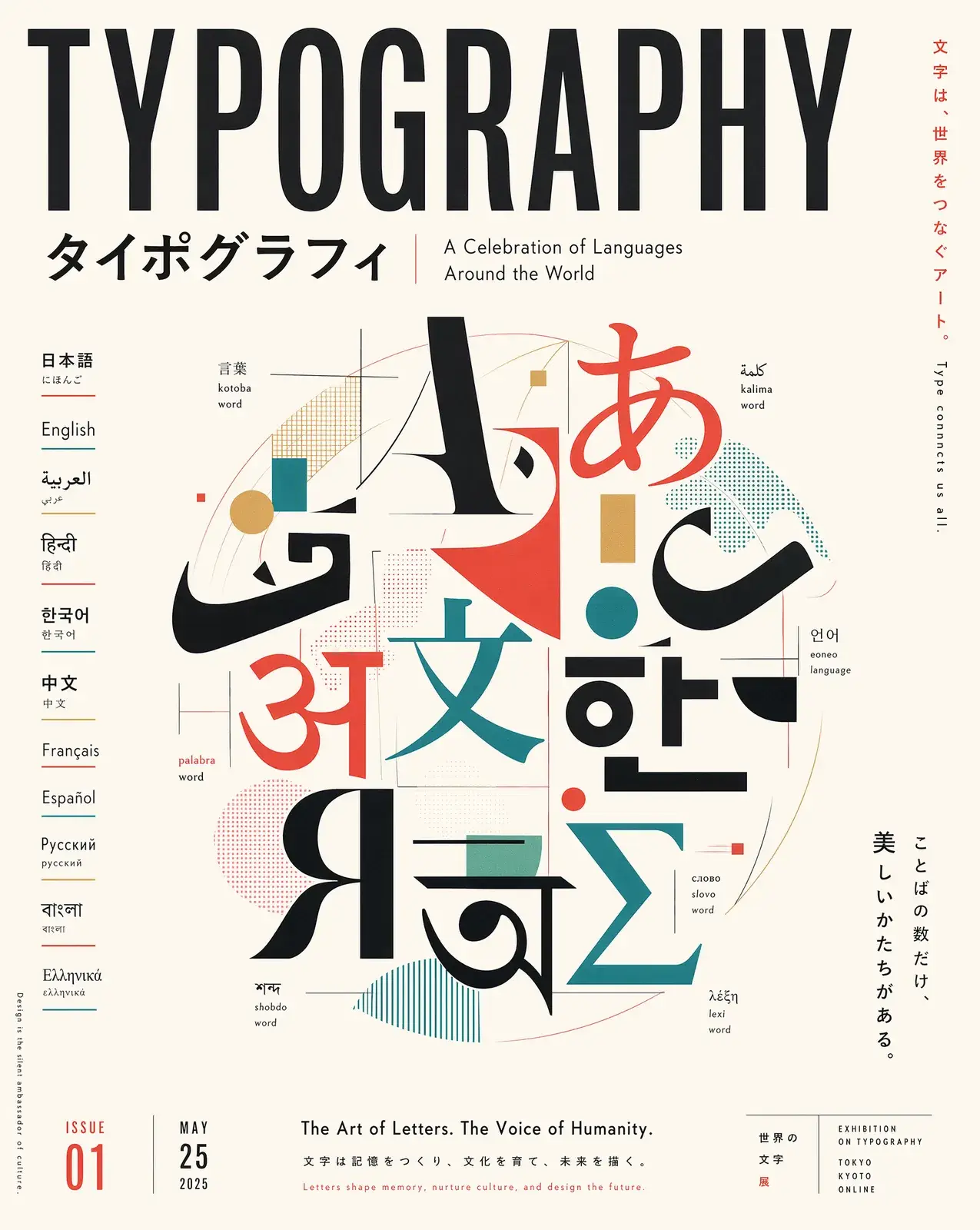
Multilingual typography
Prompt
Editorial poster titled “Typography” celebrating global languages with bold multilingual letterforms—Japanese, Arabic, Korean, Devanagari, Cyrillic, Bengali, Greek, Chinese, and Latin—in a modern graphic composition, sharp readable text.
Key Features of GPT Image 2
Text rendering
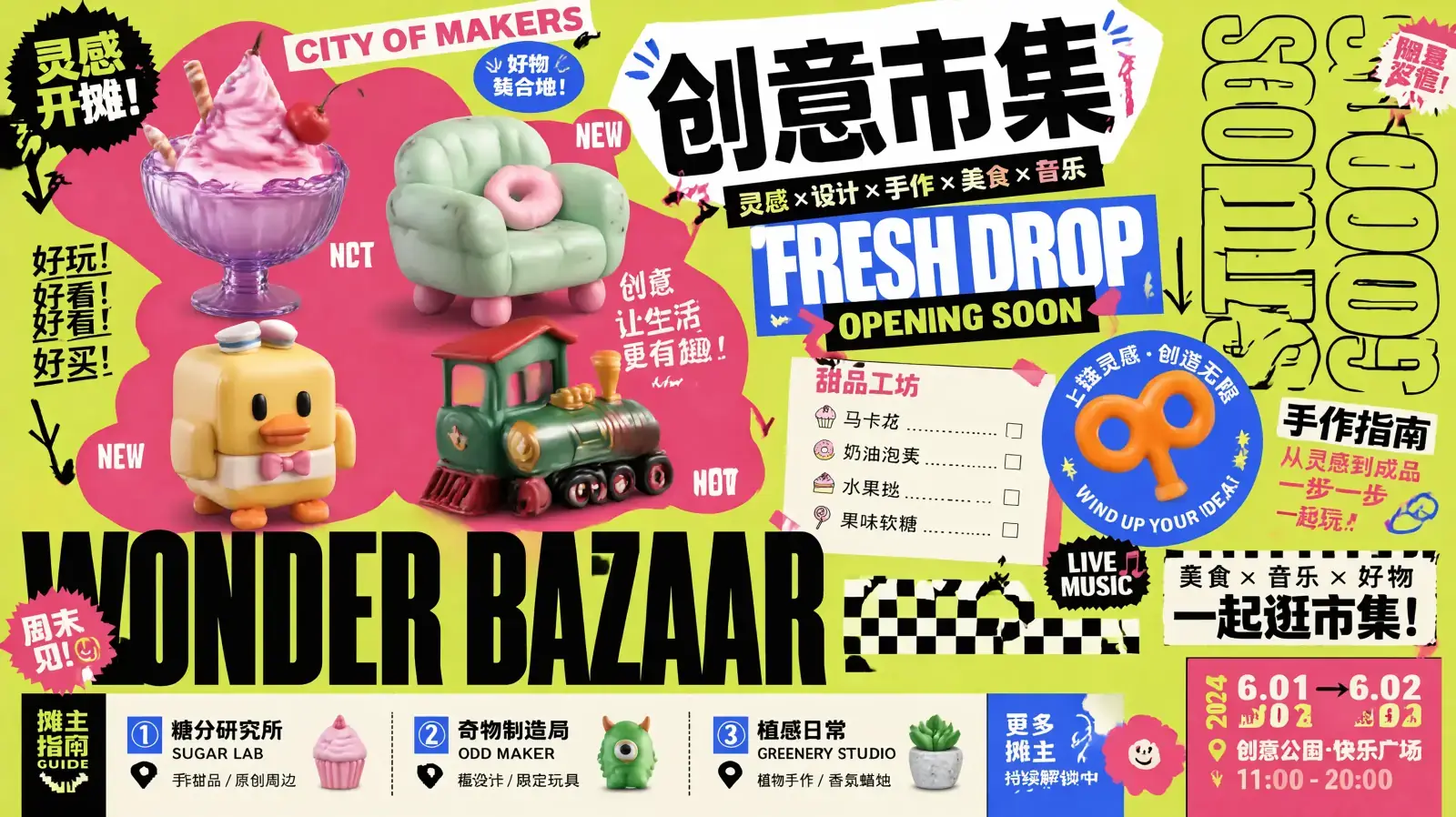
Keep headlines, UI labels, and multilingual copy readable in one frame—so posters, packaging, and product boards ship without fixing broken letters.
How to Use GPT Image 2
1. Start from text or a reference
Open GPT Image 2 with a text brief, or add an owned image for reference-led create or the image-edit route. Prefill from a Key Feature or Example if you want—nothing runs until you generate.
2. Spell out text, layout, and settings
Write exact headlines, UI labels, multilingual copy, panel structure, materials, and any surgical changes in plain language. Set ratio and resolution for the delivery you need.
3. Generate, review, then edit
Confirm the credit estimate and generate. Check readable text, identity, and layout, then download—or continue on image-edit to change only what you ask while the rest of the frame holds.
GPT Image 2 Pricing
Compare GPT Image 2How GPT Image 2 compares to other models
GPT Image 2
This modelStrict prompts, premium edits, high-resolution finals
1K–4K PNG4–9 credits per output
Keep-and-change edits, reference fidelity, and Flare or Sunburst
1K–4K PNG1–8 credits per output
Fast balanced generation and editing with strong general knowledge
1K–4K PNG5–7 credits per output
GPT Image 2 FAQs
What is GPT Image 2?
GPT Image 2 is OpenAI’s image generation and editing model. On MixVio you can start from a text prompt or an owned reference, then generate or continue with a natural-language edit—credits shown before you run.
What is GPT Image 2 best for?
Use it for detailed briefs that must land: campaign posters, packaging and product stills, UI-style layouts, and prompt-led edits where readable in-image text and layout matter as much as the look.
Can GPT Image 2 render readable text, including multilingual copy?
Yes—text rendering and layout control are core strengths. It handles headlines, labels, posters, and packaging, including multilingual copy such as CJK scripts. Still review fine print, spelling, brand names, and dense body text before you publish.
Can I edit an existing image?
Yes. Upload one image you own or have permission to use (JPEG, PNG, or WebP, ≤30 MB), then describe the change in plain language—for example swap a background, update on-image copy, or adjust wardrobe. MixVio routes to the GPT Image 2 edit path. MixVio does not publish a separate pixel-size gate for these stills. Mask painting is not exposed yet, and unrequested details can still shift, so review before publishing.
Which resolutions and aspect ratios does MixVio support?
Text-to-image and image edit support 1K, 2K, and 4K with auto, 1:1, 4:3, 3:4, 16:9, and 9:16. Auto ratio is only available at 1K, and 4K is not available at 1:1. Editing uses the same resolution table as generate.
Create text-ready stills with GPT Image 2.
Private. Credits shown first.
Start from text or an owned reference for posters, packaging, or product edits—then generate with GPT Image 2 selected.
Create with GPT Image 2 ↑