AI Video Extender
Upload a video you own, describe what happens next, and choose how long the new part should be. The download keeps your original video first.
- Last frame starts the new segment
- You choose the new length
- Original video stays first
- Private download
Use AI Video Extender
AI Video Extender examples
Longer samples of one night scene continued past an earlier moment. Each prompt describes the pictures in that sample.
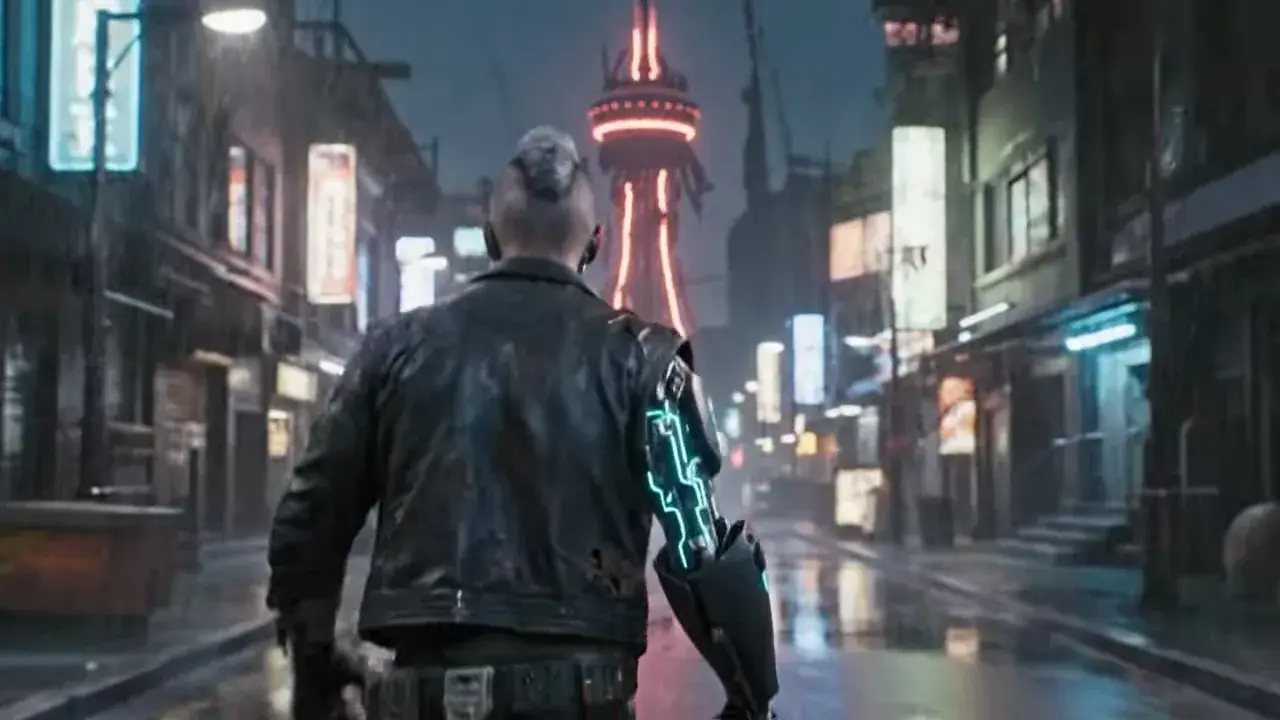
Night street continuation
Prompt
He walks and then runs down the rainy street toward a red-lit tower, enters a wrecked hall, fights a red-eyed robot as sparks burst from his arm, stands before a night skyline and a glowing blue sphere, and reaches toward a lit machine.
Continue a video you already have
Continue the scene, not just the frame
Extend VideoThe new segment starts on the last frame and adds the next moment. It is a new part after your video, not a held still of the ending.

Build the length you need
Extend VideoChoose how long the new segment should be. A video shorter than 4 seconds uses a 4-second segment. You can keep adding the next segment.
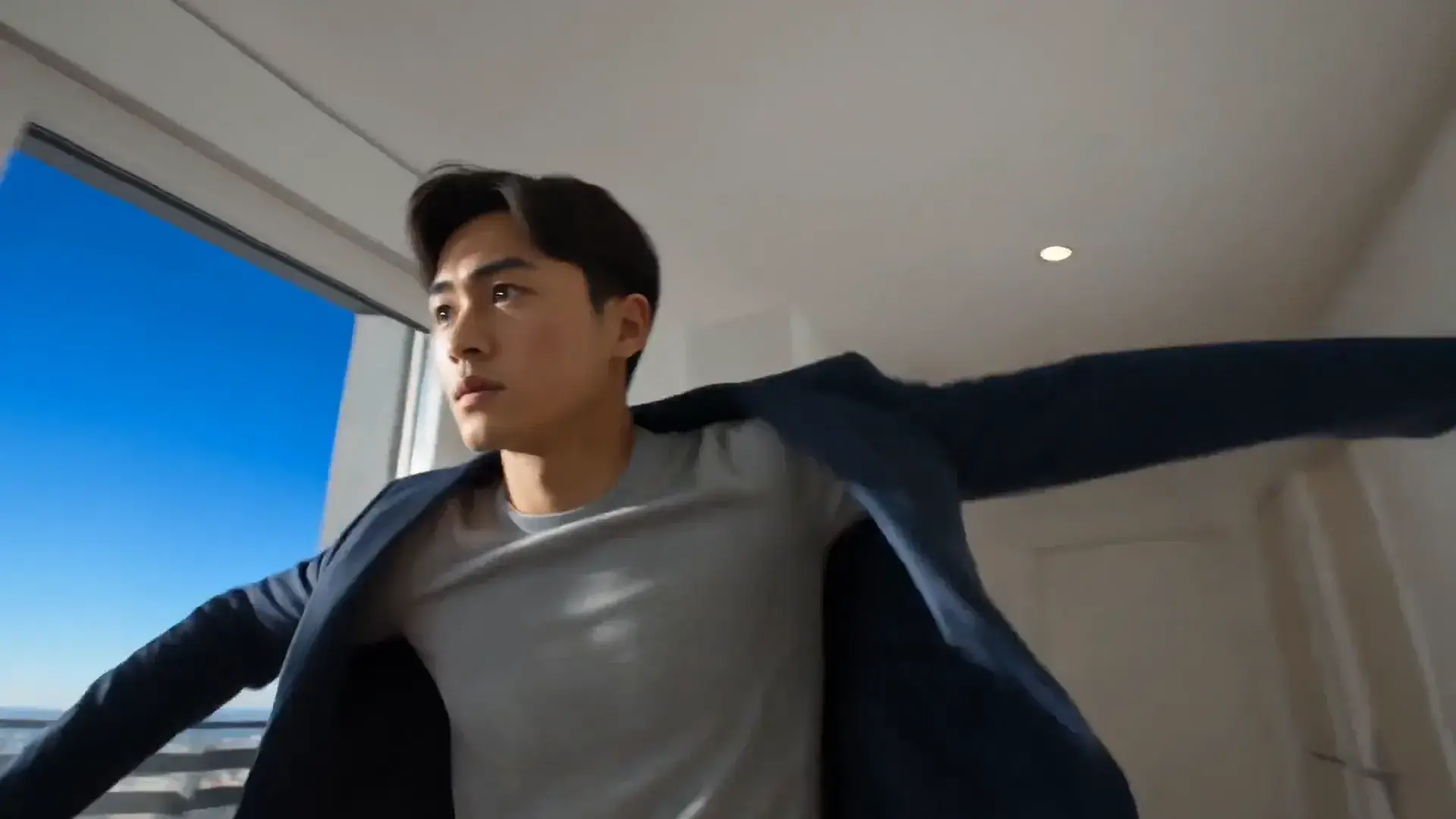
Keep the shot moving forward
Extend VideoUpload a video you own and describe what happens next. The download plays your video first, then the new segment, fitted inside the original frame.
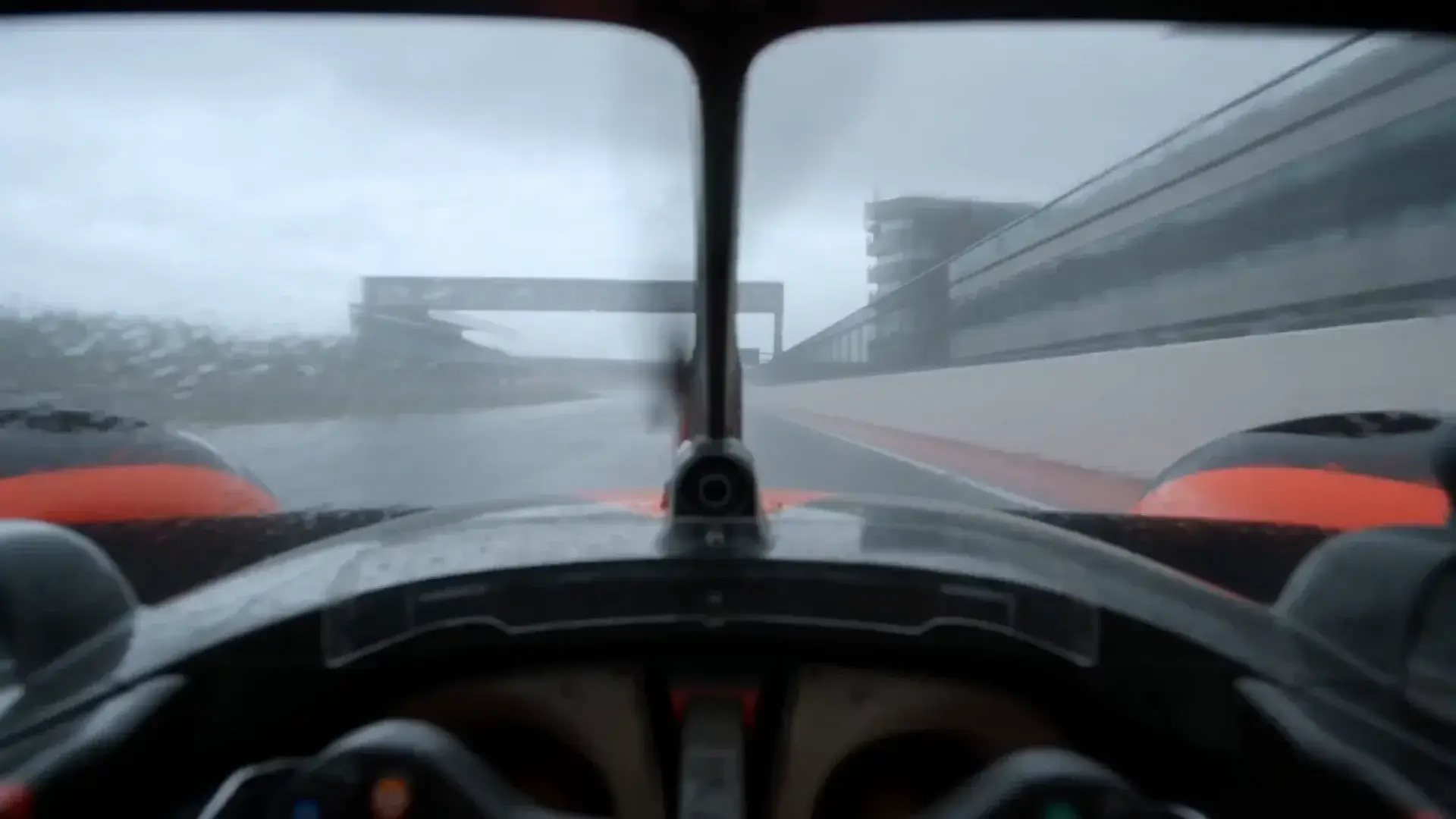
Extend Videos with Top AI Models



How to extend a video
1. Upload your video
Start from an MP4, MOV, or WebM you own, or choose Extend video on a finished MixVio video.
2. Choose how long to add and what happens next
Describe the next moment and choose how long to add. The new part is added after your video. A source shorter than 4 seconds uses a 4-second segment.
3. Download the extended video
When the quote is on Extend Video, press it and download the private MP4. Each piece keeps its soundtrack, with a short fade where the pieces meet.
AI Video Extender Pricing

Related video tools
Start from an image, restyle a video, or sharpen the extended MP4.


AI Video Extender FAQs
What is AI Video Extender?
AI Video Extender adds a new segment after a video you already own. The new segment starts from the last frame, and the download plays your original video first.
How do I extend a video?
Upload a video you own, or choose Extend video on a finished MixVio video. Describe what happens next, choose the new length, confirm the quote, and download the private MP4.
What video can I upload?
MP4, MOV, or WebM you have the rights to use, up to 200 MB, the same as Video to Video. The downloaded file must also be 200 MB or smaller. Credits return if the join cannot finish.
How long can the new segment be?
You choose how long to add from the lengths available for that video. A source shorter than 4 seconds is raised to a 4-second new segment. The control stops at the longest length that video can use.
Does the extended video include sound?
Yes, when a piece has sound. The download keeps that soundtrack in order. A piece without sound stays silent for its stretch. Picture and sound fade together for about a fifth of a second where two pieces meet.
Extend a video you own from its last frame.
Your original plays first.
Describe what happens next, choose how long to add, and download after you confirm the quote.
Extend your video ↑