AI Motion Control
Upload a photo and a reference video. The person or character in the photo copies that motion.
Use Motion Control
Motion Control workspace
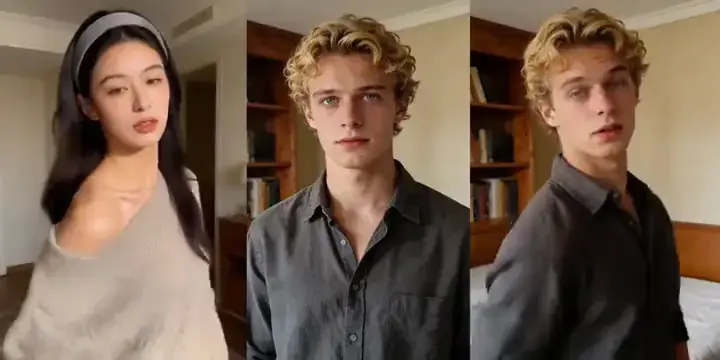
Choose a clear, front-facing photo
Use a sharp, high-resolution photo of one person facing the camera. Keep the eyes visible and show the body parts you want to animate. Avoid side profiles, group photos, blur, and covered faces.
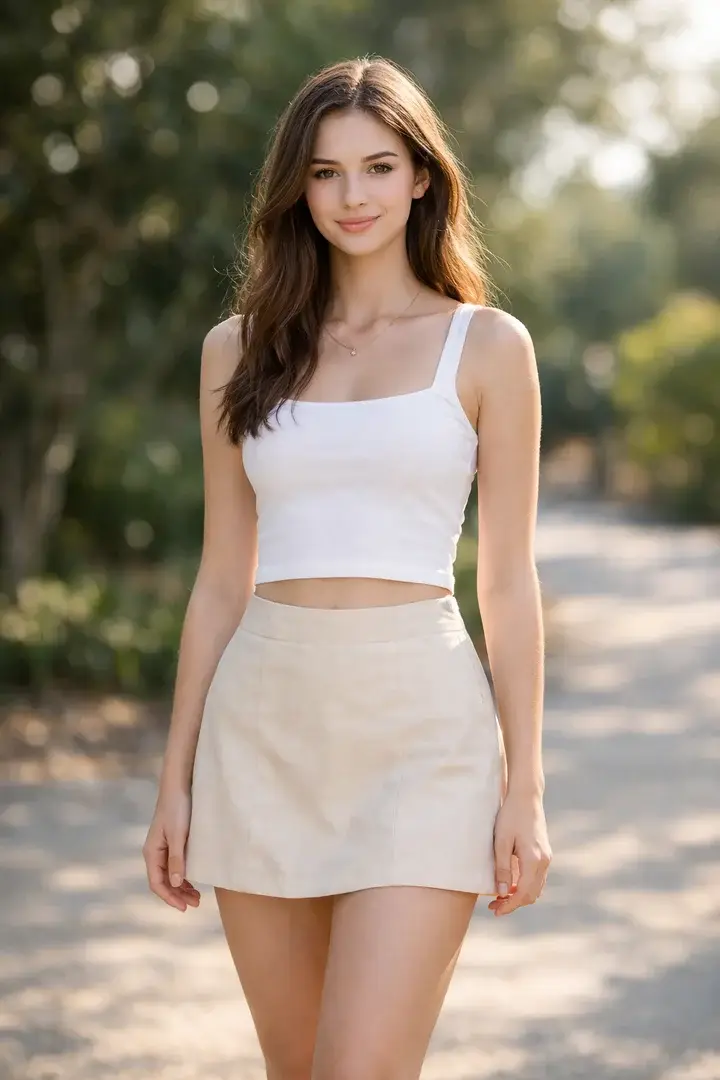
Good photo
One clear face
Face the camera in soft, even light. Keep the eyes visible and include the upper body when possible.
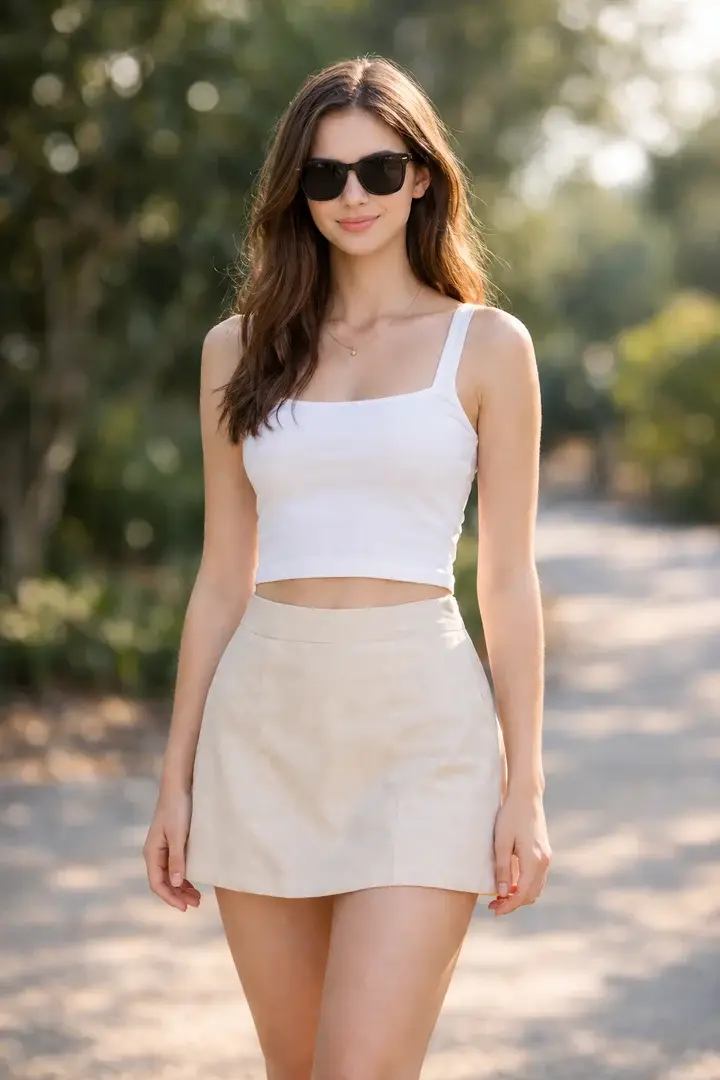
Avoid
Covered eyes
Sunglasses hide the eyes and make facial details harder to follow.
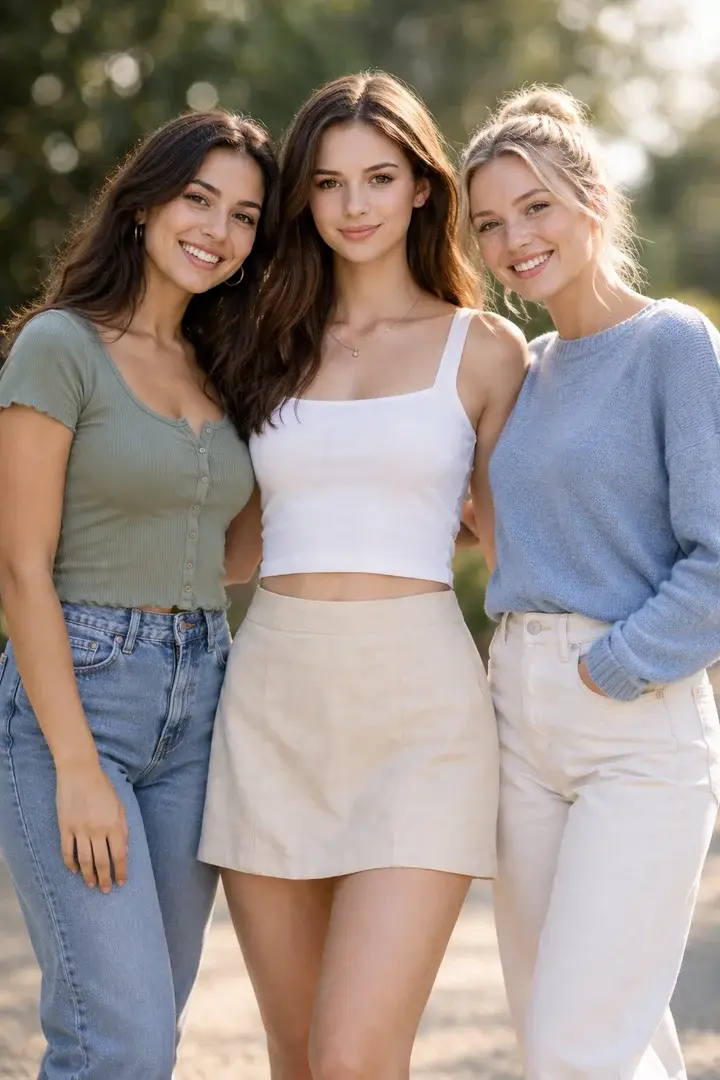
Avoid
Several people
A group photo makes the intended lead unclear. Choose a photo with only one person.
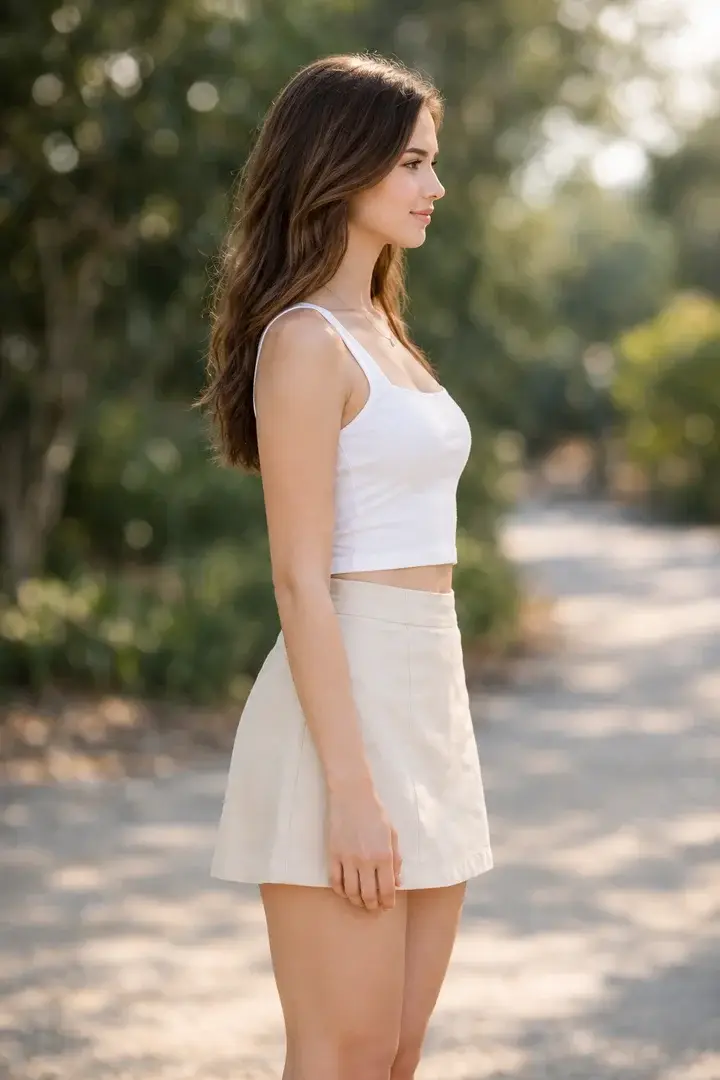
Avoid
Extreme side angle
A full side profile hides part of the face. Choose a front-facing view instead.
Motion Control use cases
Transfer a dance onto your character
Keep the character’s look in the photo and copy the choreography from a real performance video, instead of prompting the steps.
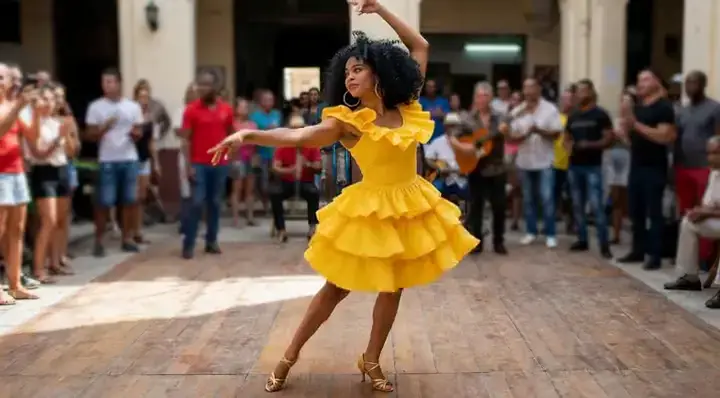
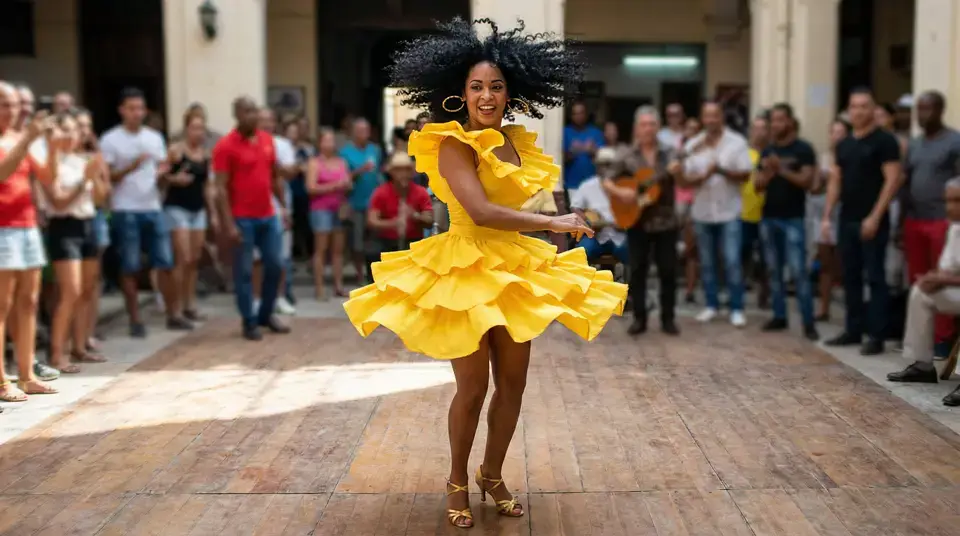
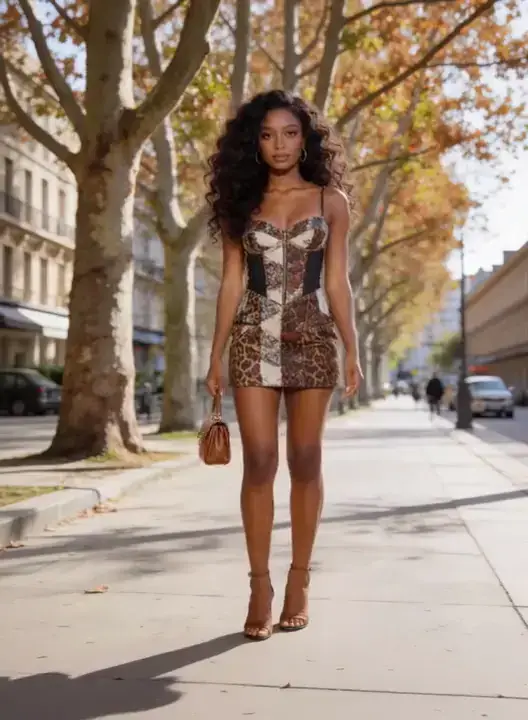
Reuse a walk across a new outfit
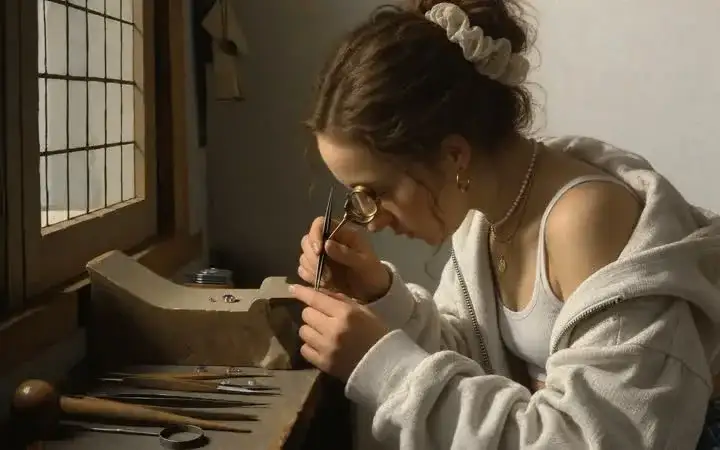
Keep wardrobe and silhouette in the image. The reference video supplies the walk, so the same motion can dress a new look.
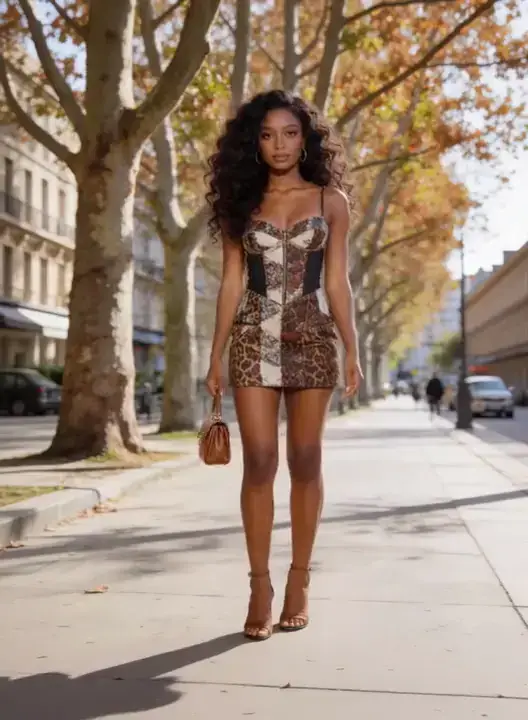
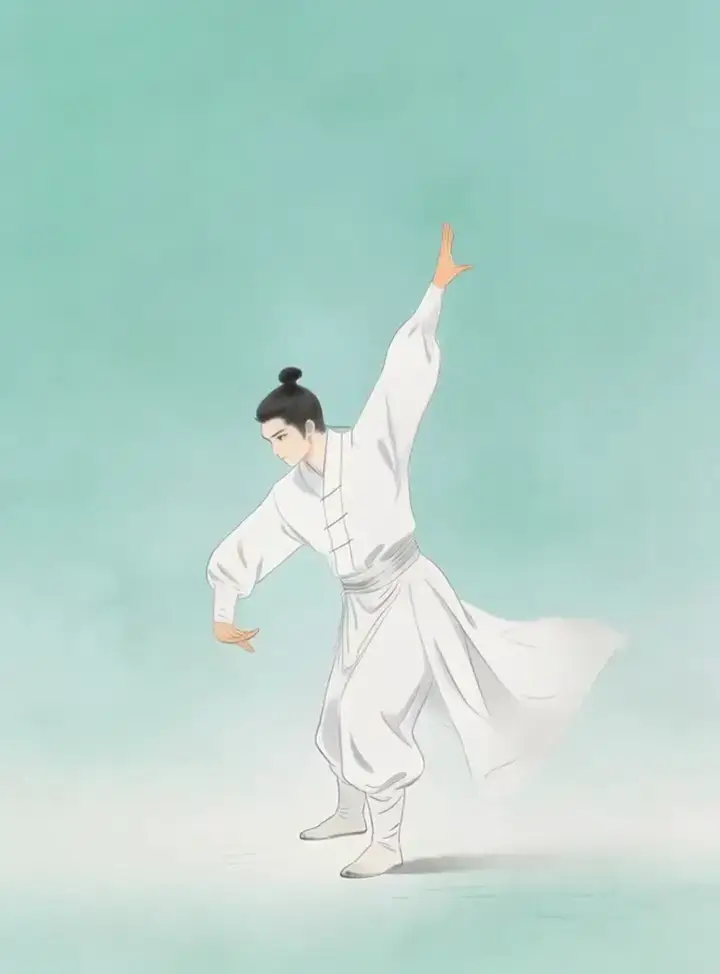
Animate an illustrated character with real motion
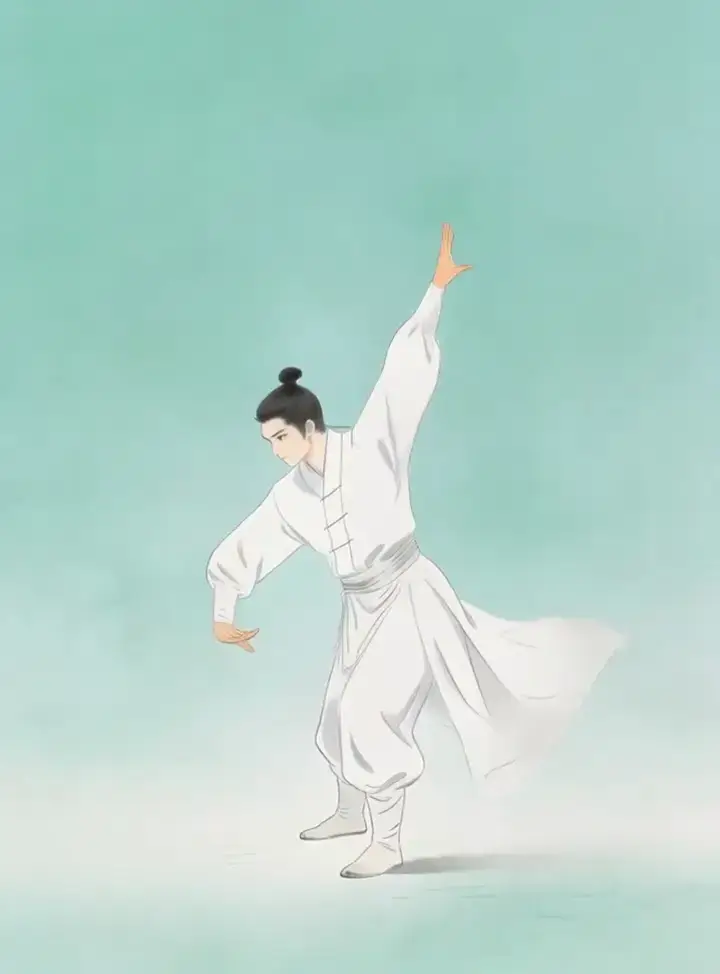
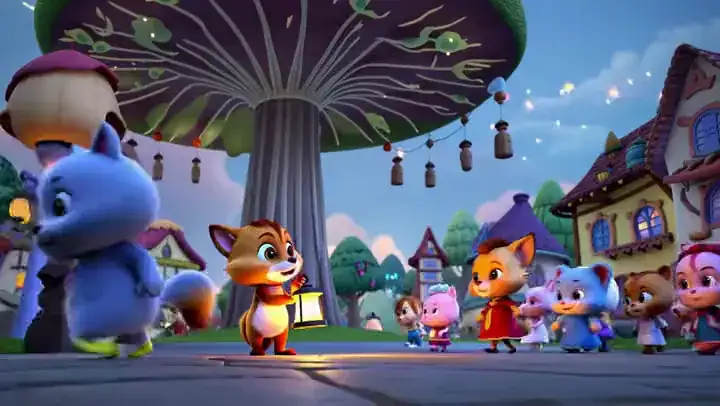
The image can be illustration or ink. The video supplies weight, timing, and limb travel while the drawing’s style stays locked.
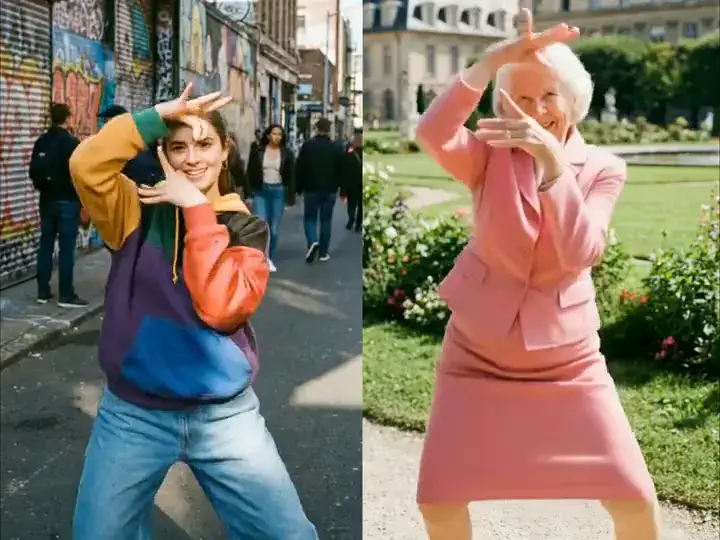
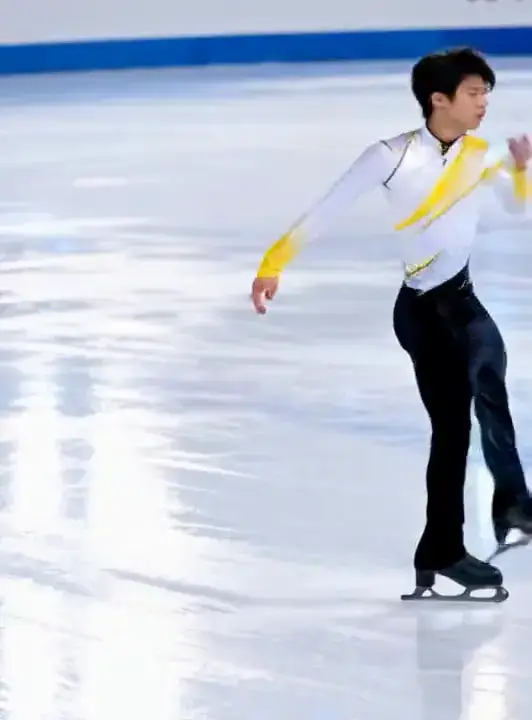
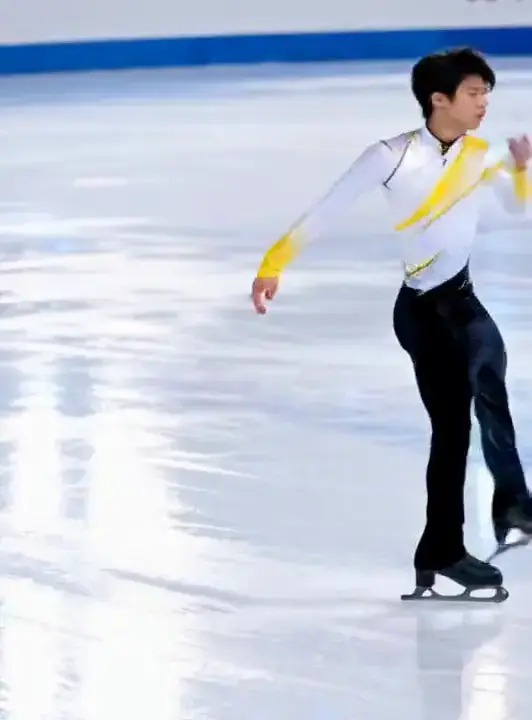
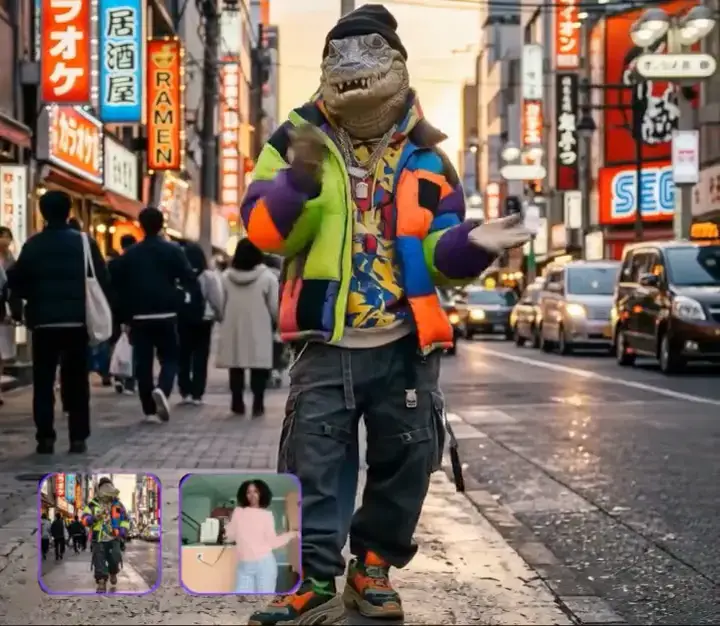
What Motion Control can do
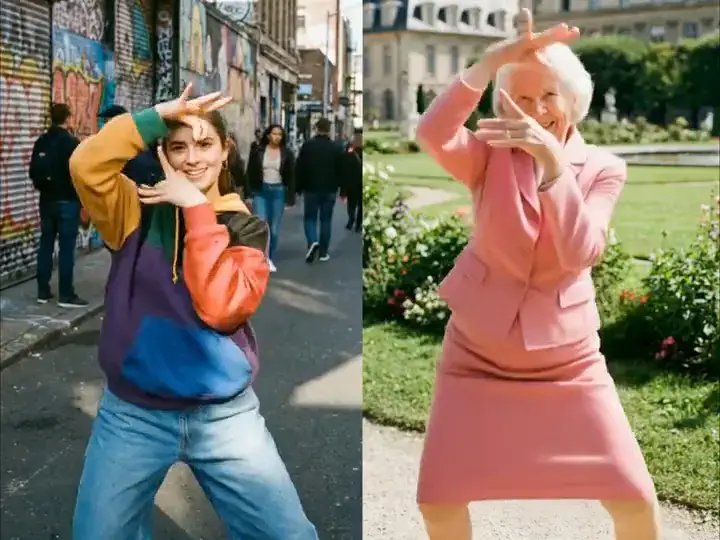
Copy the motion from the video
Body motion, gestures, timing, and expression come from the reference video, not from a written prompt.
Keep the character from the photo
Face, wardrobe, and style stay in the image while that motion is applied — photo, illustration, or stylized art.
Follow the video or keep the framing
Video setup copies a complex performance up to 30 seconds, including camera. Photo setup keeps the original framing, up to 10 seconds.
How to use Motion Control
1. Upload a photo
Start with one JPEG, PNG, or WebP you own. Match a full-body photo with a full-body video, and a portrait with a portrait.
2. Upload a reference video
Add a 3–30 second video of the motion you want. One subject in a continuous shot transfers more cleanly than cuts or a crowd.
3. Generate and download
Confirm the credit quote, generate, inspect the private MP4, then download. Length follows the reference video.
Motion Control Pricing

Explore more AI tools
Invent motion from an image when you have no video, restyle the photo first, or sharpen the finished MP4.
Motion Control FAQs
What is MixVio Motion Control?
Motion Control makes an image copy the motion from a video — body motion, gestures, timing, and expression. The image can be a photo you own, including a selfie, or an illustration or stylized character. It is not Image to Video, which invents motion from a prompt, and it is not lip sync.
How to use Motion Control
Three steps. 1) Upload a photo: one JPEG, PNG, or WebP you own. Match a full-body photo with a full-body video, and a portrait with a portrait. 2) Upload a 3–30 second reference video. One subject in a continuous shot transfers more cleanly than cuts or a crowd. 3) Confirm credits, generate, inspect the private MP4, then download. Length follows the reference video.
Is MixVio Motion Control free?
An account is required. Eligible Google-connected accounts receive 40 welcome credits once, valid for 7 days. Motion Control is available on the Free plan when your balance covers the quote. The public route starts at 18 credits for 3 seconds at 720p. Failed runs cost no credits.
How do credits work?
Credits are billed by reference-video length: 6 credits per second at 720p and 8 credits per second at 1080p. A 3-second 720p run is 18 credits. The exact reservation appears before you generate. Failed or cancelled tasks release the reservation.
What kinds of prompts work best?
Leave the prompt empty, or describe scene, lighting, and camera only. Do not describe the action — the reference video already supplies it. Example: natural daylight, stable camera, keep the original location lighting.
Upload a photo.
Copy the motion from the video.
Upload a photo you own and a reference video, confirm credits, and download a private MP4.
Start Motion Control