Muse Image Generator & Editor
Generate or edit photos with Meta Muse Image. Keep type readable on posters and packaging, or restyle a scene with up to 10 photo references. Muse sets the pixel size from the ratio.
- About 2.5 megapixels
- Up to 10 photo refs
- Text and edit
- Meta · Muse Image docs ↗
Create with Muse Image
Example prompts for Muse Image
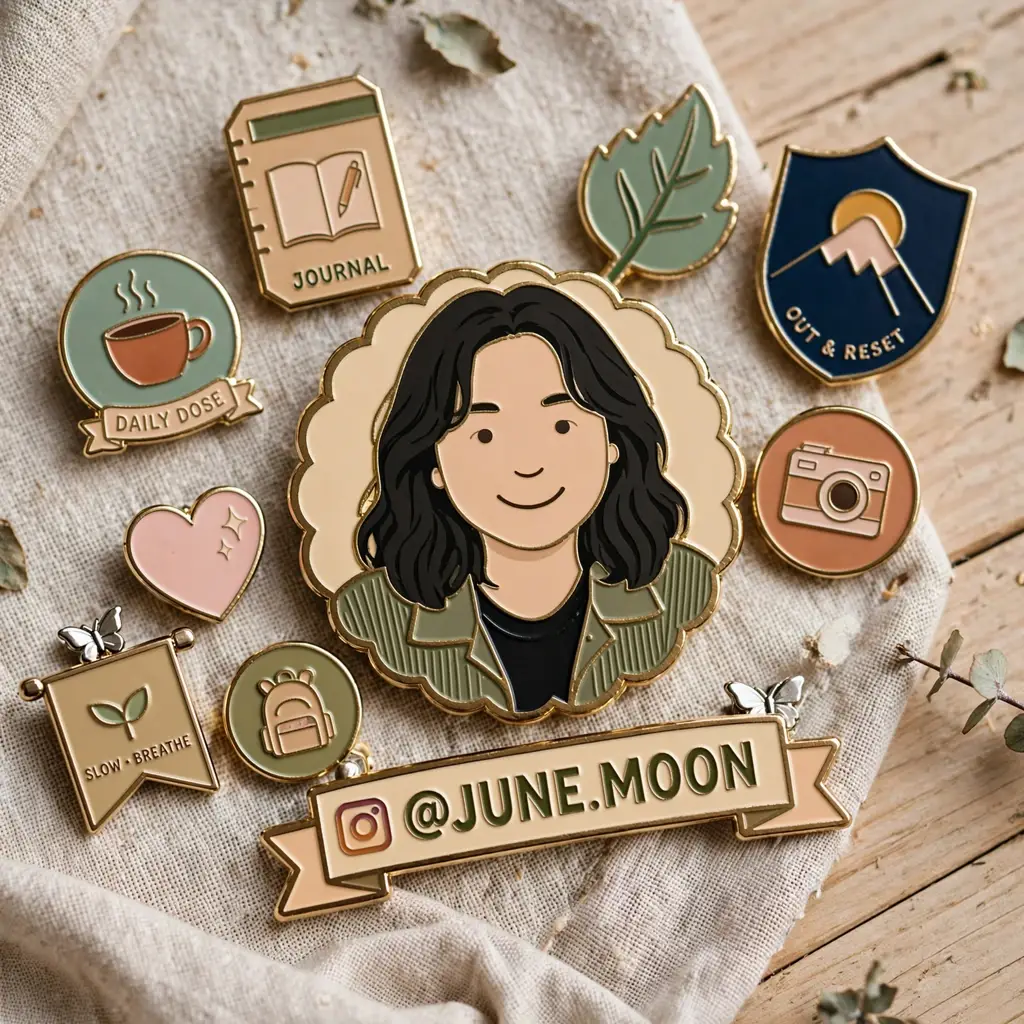
Enamel pins
Prompt
Enamel pins on linen over wood. A scalloped portrait pin of a smiling person with dark wavy hair sits in the center. Readable pins say JOURNAL, DAILY DOSE, OUT & RESET, SLOW · BREATHE, and @JUNE.MOON beside an Instagram mark. Also a leaf, a pink heart, a camera, a backpack, a mountain shield, and a coffee cup. 1:1.
Key Features of Muse Image
Image generation
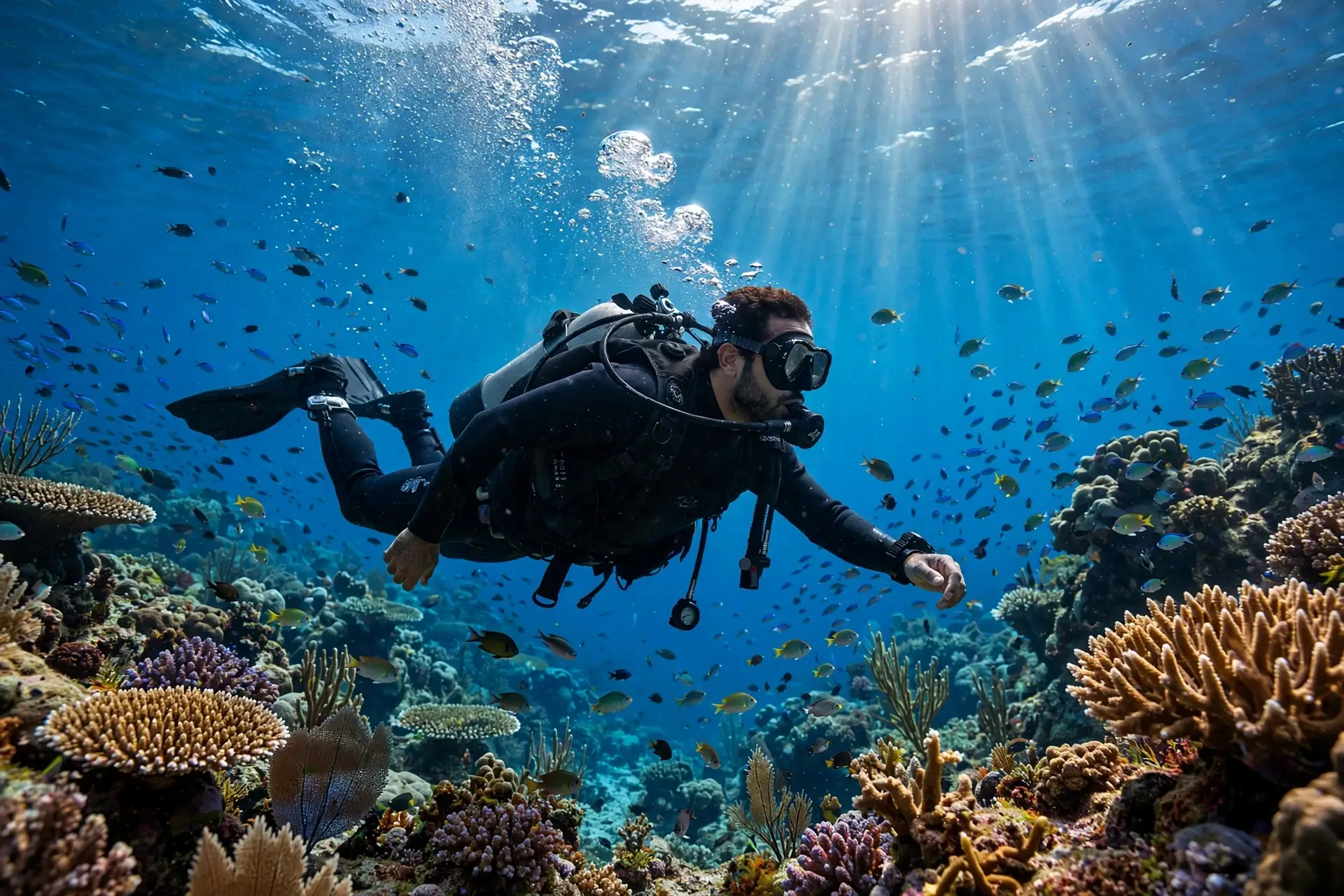
Write the picture in the prompt. Muse Image generates it on text-to-image.
How to Use Muse Image
1. Start from text or photos
Open Muse Image with a text prompt, or attach one to ten owned photos for image edit. Prefill from a Key Feature or Example if you want. Nothing runs until you generate. Generate stays disabled on edit until a photo is attached.
2. Write the scene, or the one change
For a new photo, name the subject, the type that must be readable, and the light. For an edit, name the change and what must stay. Refer to uploads as image 1 and image 2 when you need a role.
3. Choose a ratio, then generate
Pick Auto or a preset ratio, including 9:21. Muse sets the pixel size. Confirm the credit estimate and generate. Review the photo, then download or continue on image edit. There is no resolution or quality menu.
Muse Image Pricing
Compare Muse ImageHow Muse Image compares to other models
Muse Image
This modelReadable type, up to 10 photo refs, and about 2.5 megapixels
Provider-safe PNG1 credit per output
Keep-and-change edits, reference fidelity, and Flare or Sunburst
1K–4K PNG1–8 credits per output
Native 2K and 4K photos, readable text, and up to 10 photo refs
1K–4K PNG3–43 credits per output
Muse Image FAQs
What is Muse Image on MixVio?
Muse Image is Meta’s image model for generating and editing photos. Text-to-image takes a prompt. Image edit takes a prompt plus 1 to 10 owned photos. This page is separate from Muse Video. Muse Image ↗
Which aspect ratios are supported?
Auto, 21:9, 16:9, 4:3, 3:2, 1:1, 2:3, 3:4, 9:16, and 9:21. Auto is the default and lets Muse choose the frame. 9:21 is a preset, not a free-form width and height picker.
Does Muse Image take a resolution?
No. There is no 1K, 2K, or 4K control. Muse picks the pixel size from the ratio. The model card describes that size as about 2.5 megapixels. Returned pixels can vary.
How many photo references can I attach?
Text-to-image takes no photos. Image edit takes 1 to 10 JPEG, PNG, or WebP photos. Order is image 1 through image 10. MixVio does not publish a pixel-size gate for these photos. Adding more photos does not change the credit quote.
How many credits does Muse Image use?
Muse Image uses 1 credit per photo. Generate and edit share that rate, and the reference count does not change it. The generator shows the reservation before you submit. Failed runs cost no credits.
Create and edit photos with Muse Image.
Private. Credits shown first.
Start from a prompt or up to 10 owned photos, choose a ratio, and let Muse set the size. Then generate with Muse Image selected.
Create with Muse Image ↑