PixVerse V6 AI Video Generator
Create 1–15 second videos at up to 1080p from text or one owned photo. Optional native audio, optional multi-shot, and first-to-last transitions. Confirm duration and resolution before you generate.
- Optional multi-shot
- 1–15s · 1080p
- Text or photo
- PixVerse · PixVerse V6 docs ↗
Create with PixVerse V6
PixVerse V6 Examples
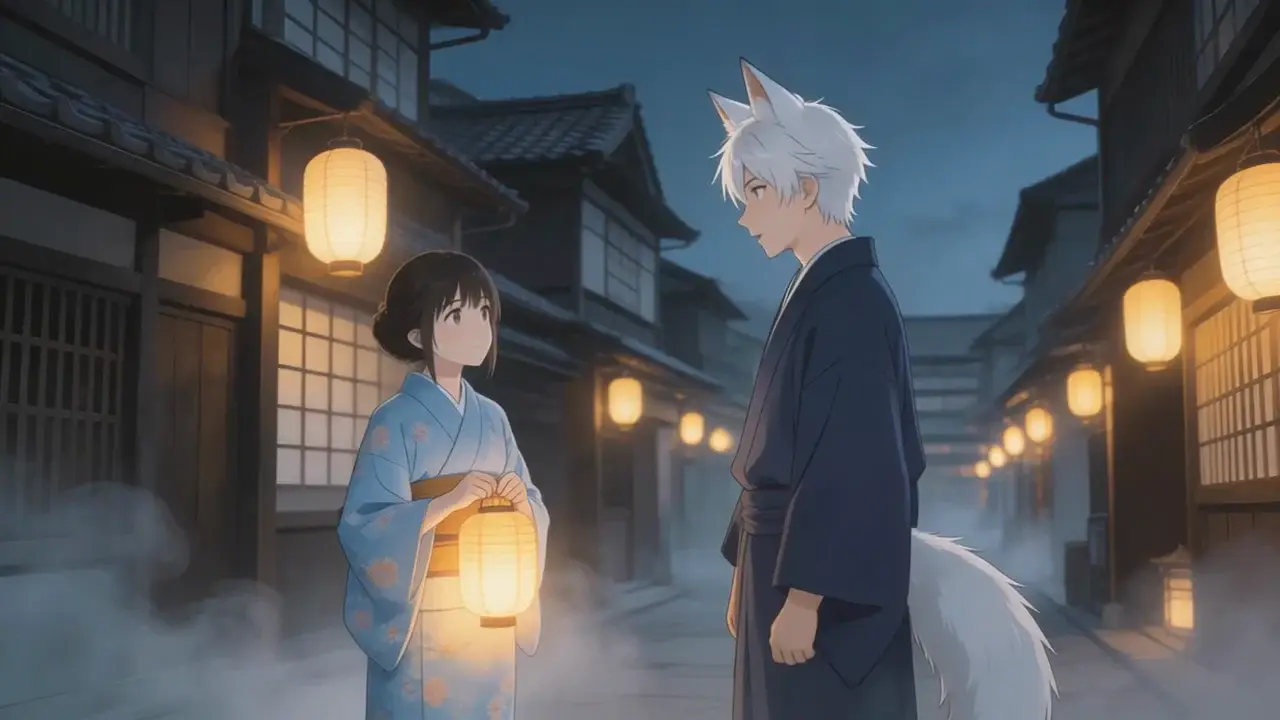
Fox lantern alley
Prompt
Anime night street. A girl in a pale kimono holds a paper lantern and faces a white-haired youth with fox ears and a tail. Wooden houses, hanging lamps, light fog. Photoreal-adjacent 16:9.
Key Features of PixVerse V6
Fifteen-second 1080p
Hold a continuous 1–15 second take at 360p, 540p, 720p, or 1080p. The default is 5 seconds at 720p. Confirm duration and resolution before you generate.
How to Use PixVerse V6
1. Start from text or a photo
Use text-to-video for a new scene, or add one owned start photo for image-to-video. Add a last-frame photo when you need a first-to-last transition. Prefill from a Key Feature or Example if you want—nothing runs until you generate.
2. Set duration, resolution, audio, and multi-shot
Choose 1–15 seconds and 360p, 540p, 720p, or 1080p. Text-to-video also sets the aspect ratio. Audio and Multi-shot stay off until you turn them on. Multi-shot turns off when a last-frame photo is attached.
3. Generate, review, then iterate
Confirm the credit estimate, then generate. Review motion, identity, optional sound, and multi-shot beats before publishing or iterating.
PixVerse V6 Pricing

Compare PixVerse V6How PixVerse V6 compares to other models
PixVerse V6
This model1–15s videos from text or one photo, optional audio and multi-shot
1–15s2–75 credits
4–30s one-takes, packs up to 50 files, and clay-render blocking
4–30s19–651 credits
1–15s videos with native audio, a start photo, or up to 7 photo refs
1–15s3–104 credits
PixVerse V6 FAQs
What is PixVerse V6?
PixVerse V6 is PixVerse’s video model. On MixVio it creates 1–15 second videos from text or one owned start photo, with optional native audio, optional multi-shot, and an optional last-frame transition. Choose 360p, 540p, 720p, or 1080p. PixVerse V6 ↗
What inputs and modes does MixVio support?
Use text-to-video for a new scene, or image-to-video with one owned start photo. Add a last-frame photo to run a first-to-last transition. Prompts can be up to 2,048 UTF-8 bytes. Fusion, extend, Cameos, style, thinking, and seed are not on this MixVio route.
Does PixVerse V6 include native audio?
Yes, as an opt-in. Audio stays off until you turn it on. When enabled, ambience, effects, and speech generate in the same pass and the credit quote rises.
What is Multi-shot, and when is it available?
Multi-shot splits one brief into consecutive beats. It is available on text-to-video and single-photo image-to-video, and stays off until you enable it. It turns off when a last-frame photo is attached because that path uses the transition route.
Which durations, resolutions, and ratios can I choose?
Duration is any whole second from 1 to 15, default 5. Resolution is 360p, 540p, 720p, or 1080p, default 720p. Text-to-video ratios are 16:9, 4:3, 1:1, 3:4, 9:16, 2:3, 3:2, and 21:9. Image-to-video and transitions follow the source photo and do not send a ratio.
Start a PixVerse V6 video.
Private. Credits shown first.
Start from text or one owned photo, then generate with PixVerse V6 selected.
Create with PixVerse V6 ↑