Reference to Video AI
Turn reference images into a short video that keeps the same characters, products, and places. Add video or audio on routes that accept them, assign each file, and download a private video.
- Owned reference packs
- Character · Product · Scene
- 16:9 · 9:16 · 1:1
- Private videos
Use Reference to Video
Reference to Video examples
Reference packs and the scenes they point toward. Each demo shows the images used and the resulting video.
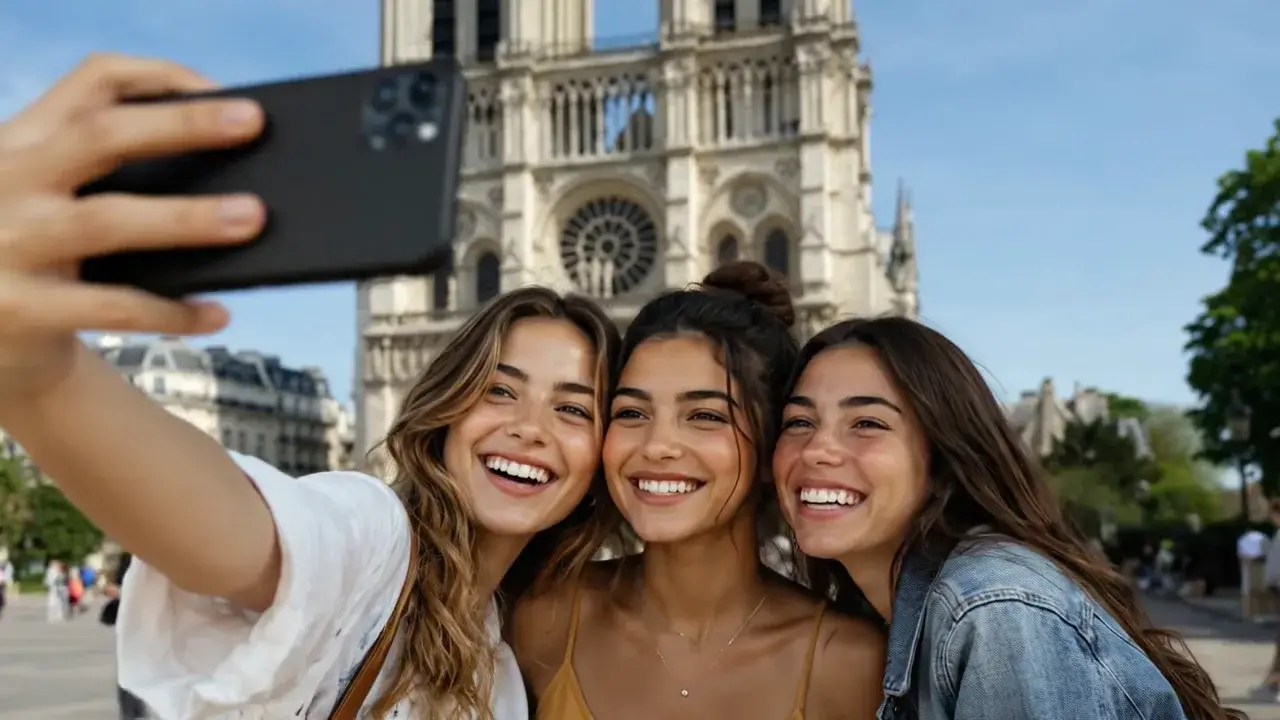
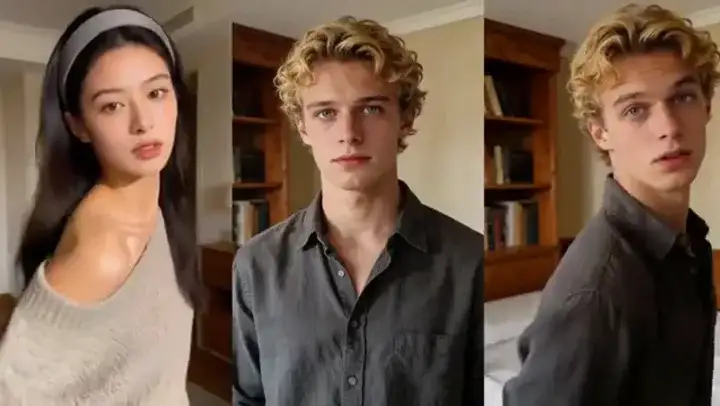
Cathedral day selfie
Prompt
Three friends from @Image1 take a daylight selfie in front of a stone cathedral, phone held out and smiles toward the lens, then lower the phone and look at one another. Slight handheld sway and street ambience.
Reference to Video use cases
Keep the person, change the scene
Hold the person from one image, place them in the setting from the other images, and give them a new action.
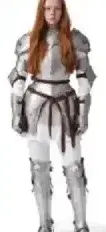
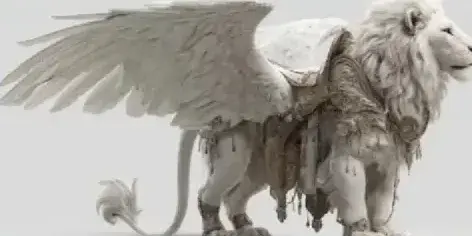

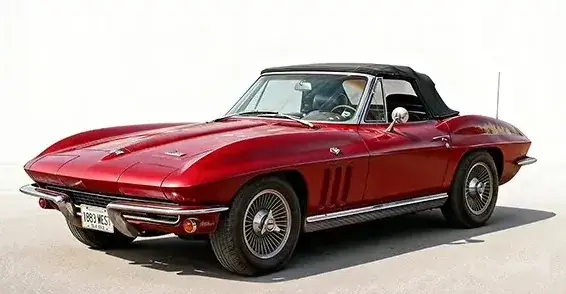
Keep the product, change the setting
Start from the product image, then put that same item with the person in the room from the other files.


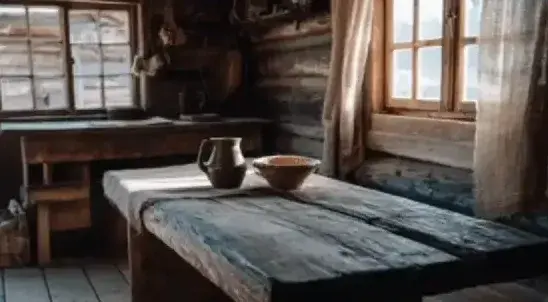
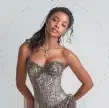
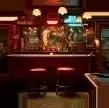
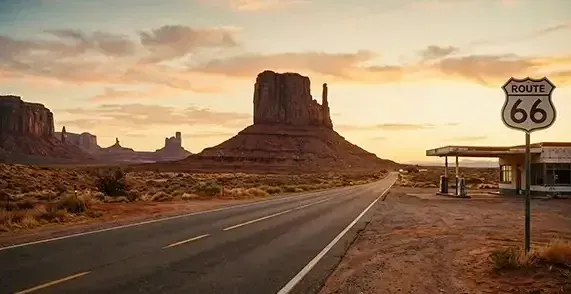
Put two people in one shot
Use one image per person and keep the bar from a third. The second person walks in from the doorway, and the room stays recognizable.



What Reference to Video can do
Keep the references recognizable
The images you upload are what the new video should hold onto. Ask for a new action or camera, and those references should stay recognizable. Details you leave out can still change.
Guide motion from a video
On routes that accept video, add a short clip so the camera or the action has a reference. Routes that only take images stay limited to images.
Guide sound from an audio file
On routes that accept audio, add a sound file so voice, music, or ambience has a reference. Some routes still need an image or video alongside that audio.
Reference to Video vs Image to Video
| Compare | Reference to Video | Image to Video |
|---|---|---|
| What you upload | Several images, plus video or audio on routes that accept them | One start image, and an optional end image on supported routes |
| What the video does | A new scene that tries to keep those references together | Camera and motion built from the start frame |
| How you direct it | A scene prompt plus @Image, @Video, and @Audio tags | A motion prompt for the start frame |
Reference to Video models

How to generate AI video from reference images
1. Add the references you own
Upload images you are allowed to use. On routes that accept them, add a short video or audio file as well.
2. Describe the scene
Write the action and camera, then assign each file with @Image1, @Video1, or @Audio1. Pick format and model. The quote updates with that choice.
3. Generate and download
Confirm the quote, generate a private video, inspect it, then download or open it in Create.
Reference to Video Pricing
Explore more AI tools
Animate one image, start from a written scene, or copy a performance onto an image.
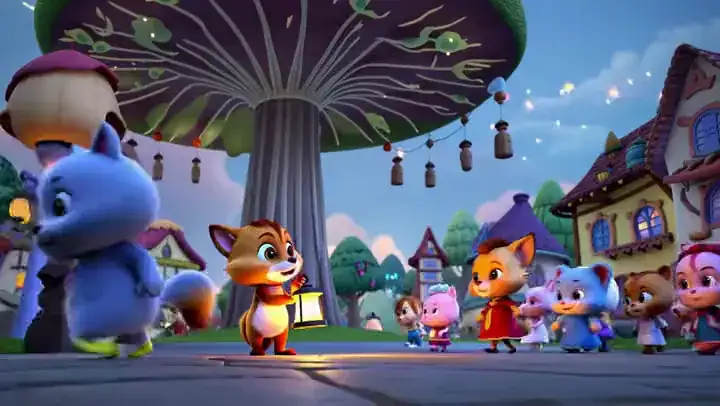
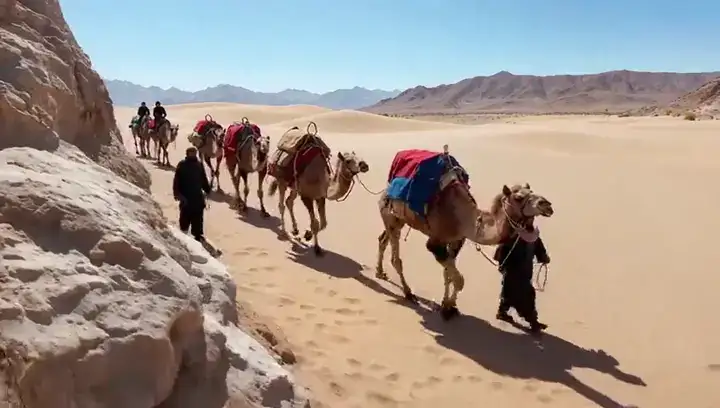
Reference to Video AI FAQs
What is Reference to Video?
Reference to Video generates a short video from reference files you own. You can start with several images and, on routes that accept them, add video or audio. It is not Image to Video from one start image, not Motion Control copying a performance, and not Video to Video restyling a source video.
How do I generate AI video from reference images?
Three steps in the generator on this page. 1) Add the references you own: upload images, and video or audio when the selected route accepts them. 2) Describe the scene: write the action and camera, assign each file with @Image1, @Video1, or @Audio1, then pick format and model. 3) Generate and download: confirm the quote, generate a private video, inspect it, then download or open it in Create.
Is MixVio Reference to Video free?
An account is required. New accounts receive 40 welcome credits valid for 7 days. Reference to Video is available on the Free plan when your balance covers the quote. Failed runs cost no credits.
How do credits work?
Credits are quoted from the selected model, duration, and resolution before you generate. The default 5-second 480p Seedance 2.0 video costs 33 credits. Other reference routes quote separately. Failed or cancelled tasks release the reservation.
What kinds of prompts work best?
Name the action and camera, then assign each uploaded file with @Image1, @Video1, or @Audio1. Use the number for that file’s slot so the person, product, place, motion, or sound stays assigned. The empty composer asks for the scene and motion; the tags appear once files are attached.
Add the references.
Generate the scene.
Upload references you own, assign each file, confirm the quote, and download a private video.
Start Reference to Video