Gemini Omni Flash AI Video Generator
Create short video with native audio from text or an owned image. Multimodal briefs, exact credits shown before generation, private 720p clips up to 10s.
- From 15 credits
- 720p video + audio
- Text + image to video
- Google · Gemini Omni Flash docs ↗
Create with Gemini Omni Flash
Gemini Omni Flash Video Examples
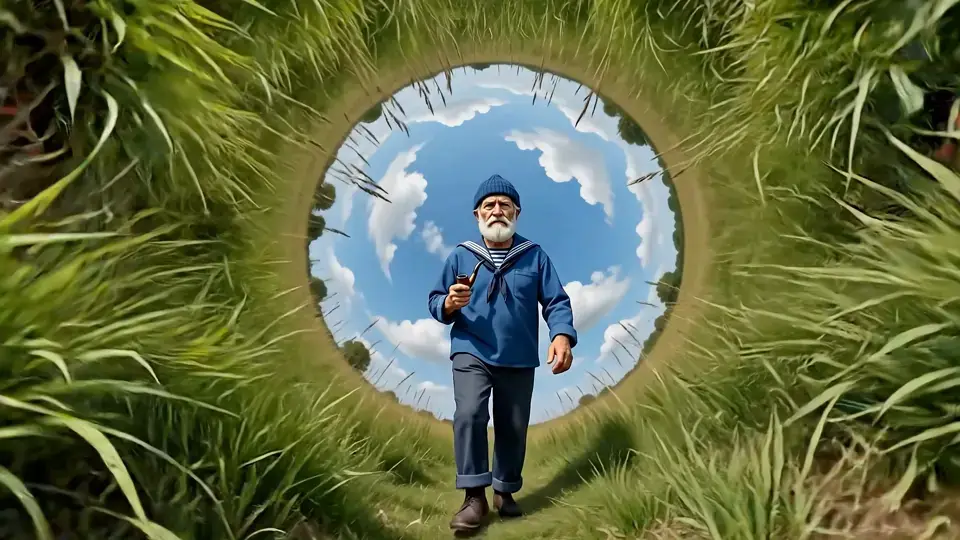
Multimodal walk-cycle restyle
Prompt
Referring to the extreme camera movement, perspective, and distortion in the motion reference, create a front-facing full-body walk cycle of the character from the image reference, quickly style-shifting into multiple visual styles during the walk cycle, starting from realistic cinema. Keep the environment, only change styles. Hard-cut backgrounds always centering the sky. Continuous walking, continuous audio, and style shifts in perfect sync to the beat of the audio. Cinematic, 16:9.
Key Features of Gemini Omni Flash
Multimodal reference
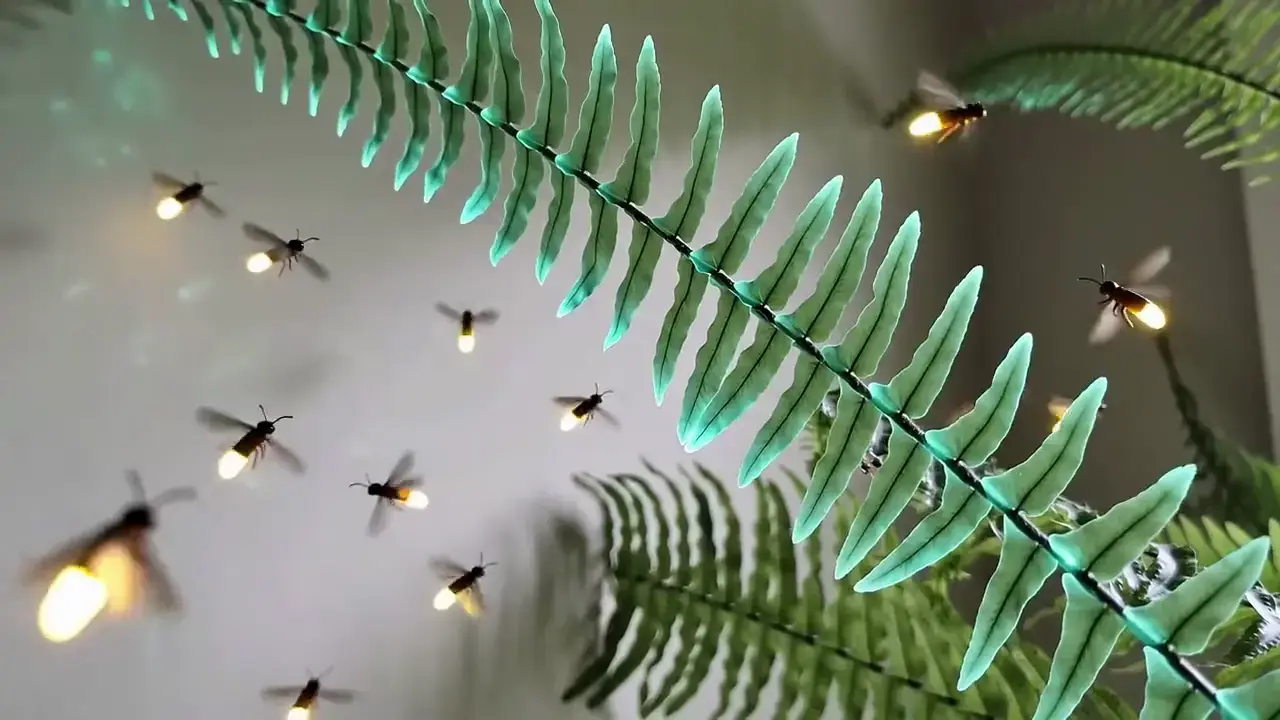
Guide the clip from text or an owned image. Combine a plain-language brief with owned references so subject, style, and staging stay under your control—not text-only guesswork.
How to Use Gemini Omni Flash
1. Start from text, image, or a clip
Write a text brief, add an owned image for reference-led motion, or upload a short owned clip for a single-shot edit. Prefill from an Example or Key Feature if you want—nothing runs until you generate.
2. Write motion, text, and sound
Describe the action, camera, on-screen text timing if needed, and native audio in plain language. Set duration (up to 10s) and ratio (16:9 or 9:16). Gemini Omni Flash stays on the live 720p route. Switch to Gemini Omni Flash 1.1 for 360p, 1080p, or 4K, a last frame, or a reference pack.
3. Generate and review
Confirm the credit estimate, generate, then check motion and synced audio before downloading or refining the brief. Conversational multi-turn session editing remains Pending.
Gemini Omni Flash Pricing

Compare Gemini Omni FlashHow Gemini Omni Flash compares to other models
Gemini Omni Flash
This modelFast video concepts · Social stories
4–10s15–39 credits
4–15s cinematic clips with selectable 720p–4K
4–15s19–882 credits
Social ads · Dialogue scenes
4–8s10–29 credits
Gemini Omni Flash FAQs
What is Gemini Omni Flash?
Gemini Omni Flash is Google’s multimodal video model for short clips with synchronized native audio. On MixVio, the current public route generates private 720p video from text, an owned reference image, or a single-shot owned source-clip edit. Gemini Omni Flash 1.1 is selected on the same page and adds 360p–4K, a last frame, and reference packs of up to 7 images or one video with up to 5 images. It is built for coherent motion, on-screen text timing, and knowledge-grounded scenes—not a separate Gemini 2.0 Flash chat model.
How long are Gemini Omni Flash videos, and what resolution is supported?
Public MixVio routes produce one private clip at 4, 6, 8, or 10 seconds, typically in 16:9 or 9:16. Gemini Omni Flash stays at native 720p. Gemini Omni Flash 1.1 also offers 360p, 1080p, and 4K on the same page. The generator shows the exact duration, ratio, and resolution for the selected route.
Does Gemini Omni Flash generate native audio?
Yes. Live text-to-video and image-to-video routes return video with synchronized native audio. Describe dialogue, ambience, effects, or music in the brief, then review speech, mix, and timing before publishing.
Can I use an image or source video reference?
Yes. Gemini Omni Flash uses one owned still (JPEG, PNG, or WebP, ≤30 MB), one owned source clip, or one of each. Gemini Omni Flash 1.1 can use a start image with an optional last frame, up to 7 owned images, or one owned video with up to 5 images. It does not accept reference audio. Use only files you own or have permission to use, and review identity and continuity because details can still change.
Does MixVio support conversational multi-turn video editing?
Not yet on the public MixVio route. Google’s Gemini Omni product supports conversational multi-turn editing in supported Google surfaces, but MixVio currently offers single-shot generation and single-shot source-clip edit only. Multi-turn session editing remains Pending until a Provider session contract passes review.
Start your Gemini Omni Flash scene.
Private. Credits shown first.
Start from text or owned references, then generate with Gemini Omni Flash selected.
Create with Gemini Omni Flash ↑